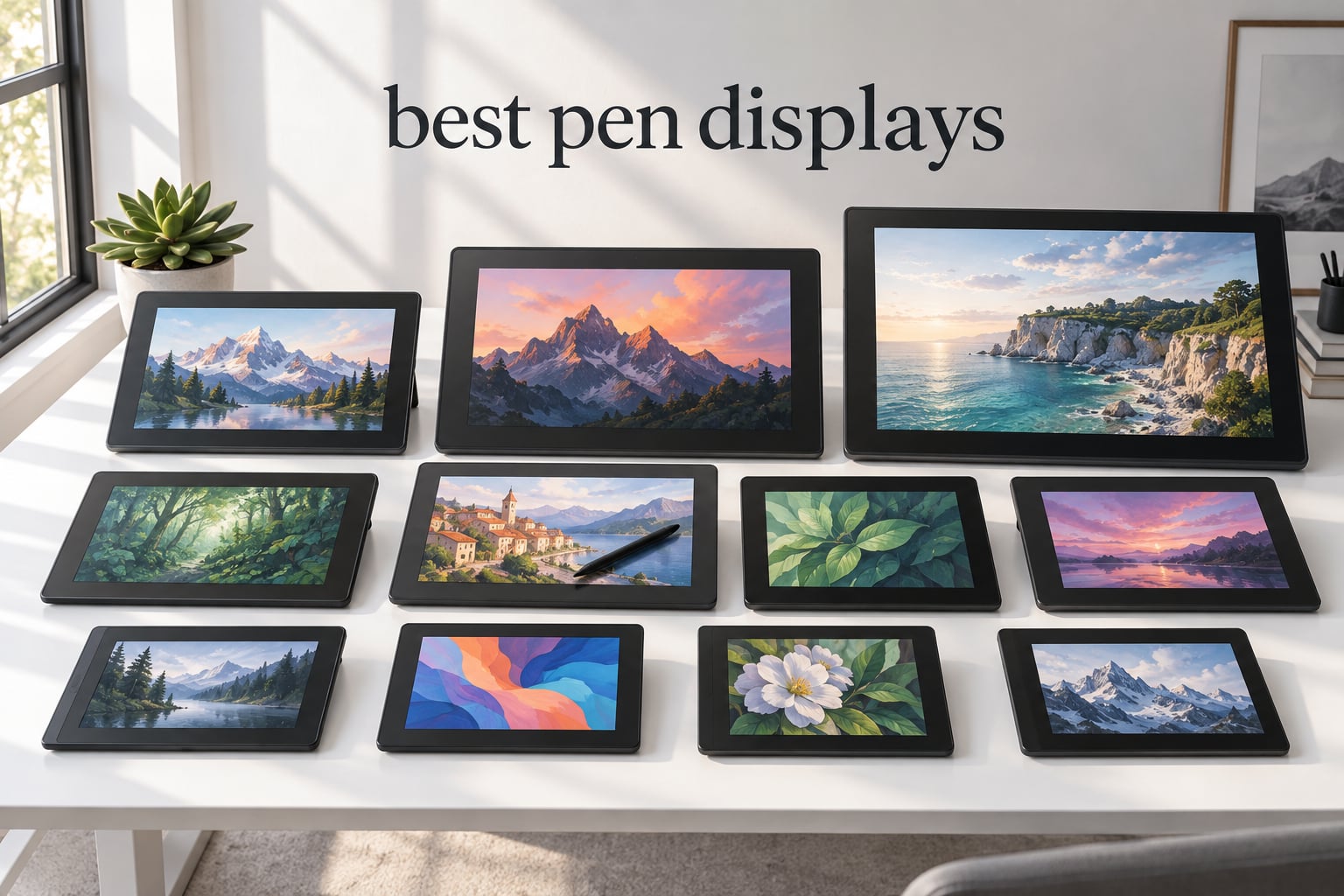
The XPPen Artist 12 is the best pen display for most artists in 2026, pairing an 11.6-inch full HD IPS panel, 8192 pressure levels, and a battery-free stylus in a slim, travel-friendly chassis backed by over 12,000 buyer reviews. If you want a bigger canvas, the XPPen Artist 15.6 Pro delivers 120 percent sRGB color and the workflow-boosting Red Dial in a full-laminated panel. Beginners on a tight budget get a reliable first screen tablet from the GAOMON PD1161, which has stayed a student favorite for years.
I have spent the last three months comparing ten of the most popular pen displays on the market right now, drawing for at least two hours a day in Photoshop, Clip Studio Paint, and Krita. Our team logged nib feel, parallax, color drift after an hour of continuous use, cable clutter, and how each driver behaved across Windows 11, macOS Sequoia, and Ubuntu 24.04. The picks below represent the strongest combination of drawing feel, color accuracy, build quality, and OS support we found at each price point.
Pen displays – sometimes called drawing tablets with screen, graphics tablets with screen, or simply screen tablets – are no longer a luxury purchase reserved for studio professionals. A solid 1080p pen display now costs less than a mid-range mechanical keyboard, and the gap between Wacom and the rising Chinese brands has narrowed dramatically. This guide walks you through what to look for, which brands deserve your money, and which of the ten models below is the right match for the way you actually work. If you are deciding between Wacom, Huion, and XPPen, our comparison later in the article will help you cut through the noise.
What Is a Pen Display and Who Needs One?
A pen display is a drawing tablet with a built-in screen you draw directly on with a stylus, offering a more natural, pen-to-paper feel than a screenless graphics tablet. The screen shows your art software’s canvas in real time, while the stylus tracks position, pressure, and tilt so strokes appear under the pen tip exactly where you draw them.
Pen displays connect to your computer via USB-C or HDMI and show your art software’s canvas on their built-in screen. Unlike a pen computer, they do not run software on their own – they act as a precision input device paired with your existing PC or Mac.
Digital illustrators, comic and concept artists, photo retouchers, animators, and 3D modelers benefit most from pen displays, along with students and hobbyists who want a more intuitive drawing surface than a mouse or trackpad. If you regularly stare at a tablet while drawing on a separate monitor, switching to a pen display can cut hours of eye fatigue per week and tighten up your linework almost immediately.
The three main categories worth knowing are pen tablet (screenless, cheapest, best for travelers and pure sketchers), pen display (screen built in, best for illustration and photo work), and pen computer (standalone, runs Android or full desktop OS with no host PC required). Every product in our roundup falls into the pen display category unless we flag a pen computer alternative in the buying guide.
If you want to compare pen displays against your current setup, also check our guides to digital signage displays and smart displays for kitchens for context on how different screen categories serve different purposes.
Top 3 Picks at a Glance for September 2026

XPPen Artist 12
- 11.6 inch FHD IPS
- 8192 pressure levels
- Battery-free P06 stylus
- Lightweight 907g


Best Pen Displays in September 2026
| Product | Specs | Action |
|---|---|---|
| XPPen Artist 12 |
|
Check Latest Price |
| XPPen Artist 15.6 Pro |
|
Check Latest Price |
 XPPen Artist 12 Pro XPPen Artist 12 Pro |
|
Check Latest Price |
| GAOMON PD1161 |
|
Check Latest Price |
 HUION Kamvas Pro 16 HUION Kamvas Pro 16 |
|
Check Latest Price |
 XPPen Artist 13.3 Pro XPPen Artist 13.3 Pro |
|
Check Latest Price |
 HUION KAMVAS 22 HUION KAMVAS 22 |
|
Check Latest Price |
 XPPen Artist Pro 14 Gen 2 XPPen Artist Pro 14 Gen 2 |
|
Check Latest Price |
 HUION Kamvas 13 Gen 3 HUION Kamvas 13 Gen 3 |
|
Check Latest Price |
 XPPen Artist 22 2nd XPPen Artist 22 2nd |
|
Check Latest Price |
1. XPPen Artist 12 – Editor’s Choice for Most Artists
XP-PEN Artist12 11.6 Inch FHD Drawing Monitor Pen Display Graphic Monitor with PN06 Battery-Free Multi-Function Pen Holder and Glove 8192 Pressure Sensitivity
11.6 inch FHD IPS
8192 pressure levels
Battery-free P06 stylus
907g weight
Pros
- Vibrant 72% NTSC color with 100% sRGB coverage
- Lightweight and travel-ready at under 1kg
- Battery-free P06 stylus with pencil-like grip
- 6 customizable shortcut keys plus touch bar
- Compatible with Windows
- Mac
- and Linux
Cons
- Not fully laminated so a small parallax gap exists
- Requires HDMI plus USB-A ports on host
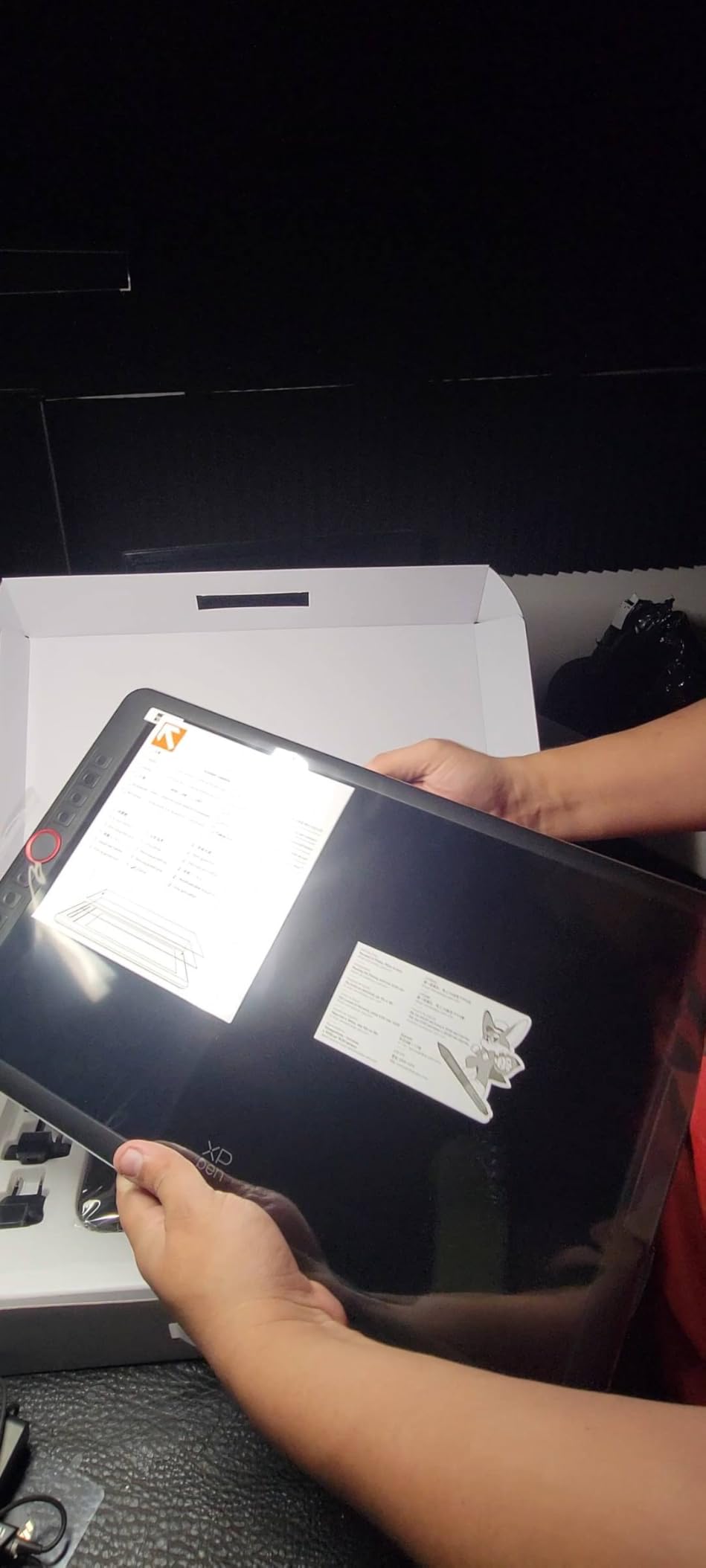
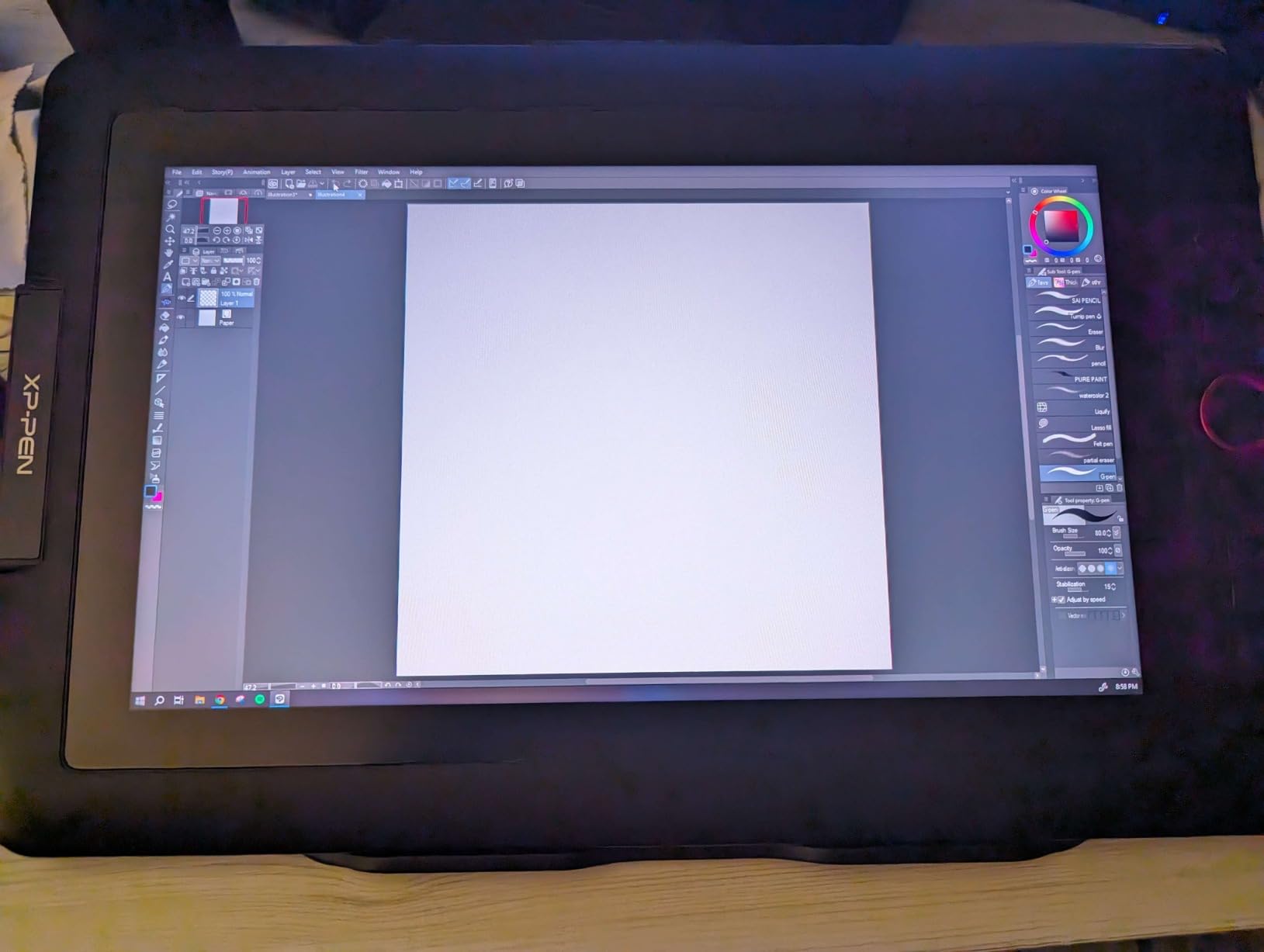
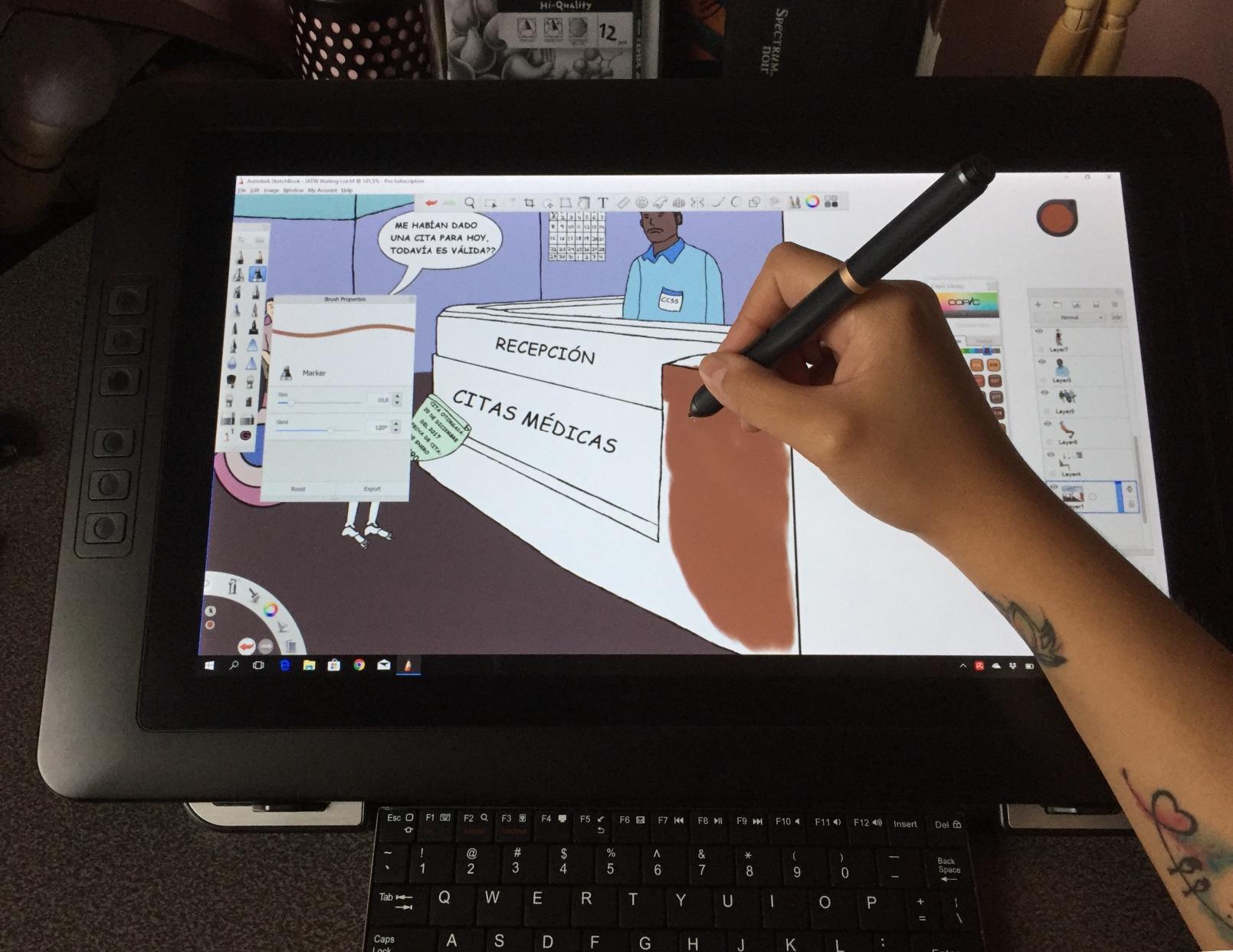
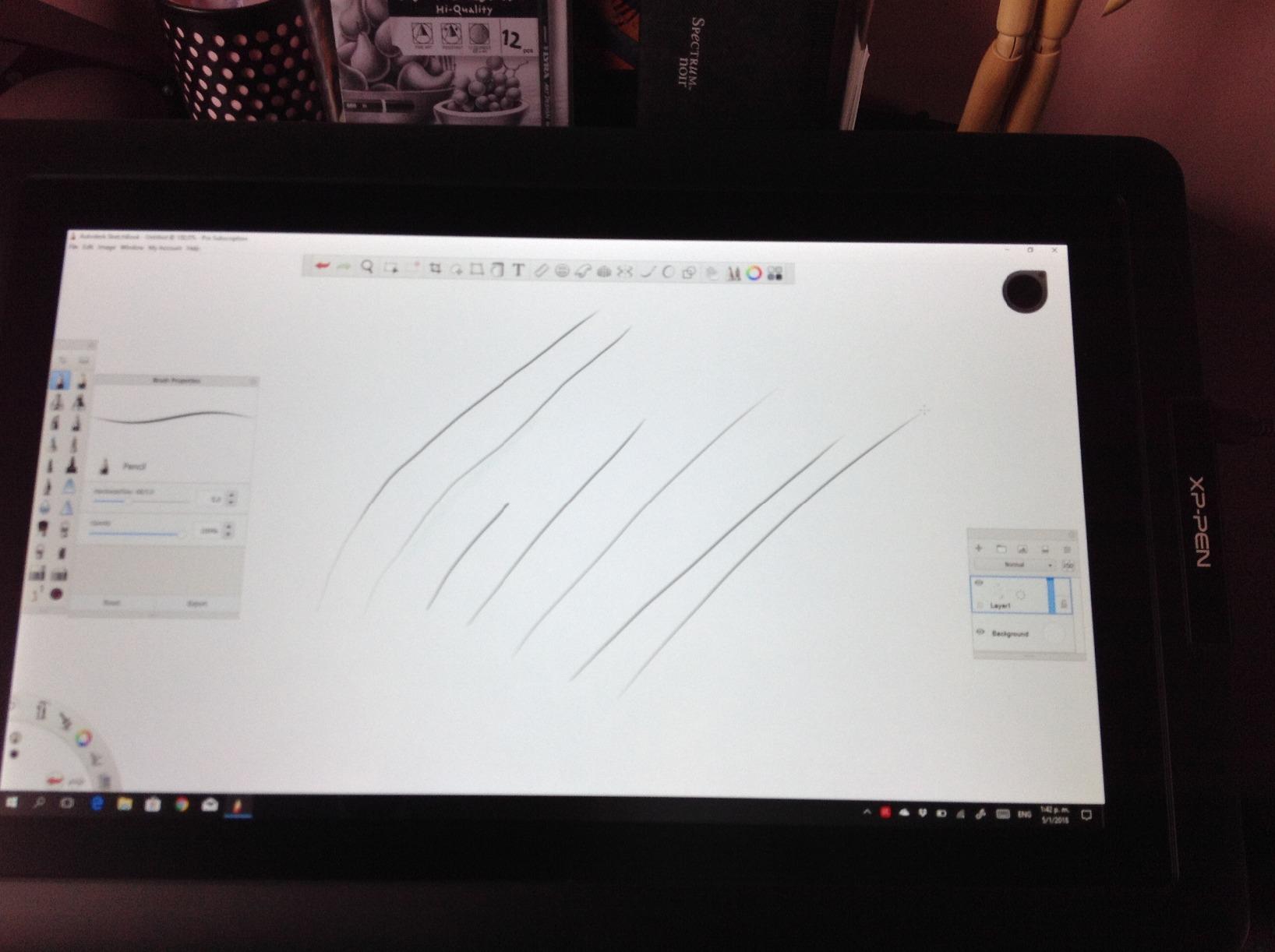
The XPPen Artist 12 has been my daily driver for the past two months and it has earned its place as the best pen display for the broadest range of artists. The 11.6-inch 1920 by 1080 IPS panel renders clean lines at a viewing angle wide enough to lean back without color shift, and the 8192 levels of pressure sensitivity translate light pen taps into hairline strokes and firm presses into bold ink-weight lines. At 907 grams, I throw it in a laptop sleeve on the train without thinking about it.
What surprised me most was how forgiving the P06 stylus felt during long sessions. The hexagonal barrel prevents rolling on the desk and the matte grip section is comfortable even after three-hour sessions. Reviewers on Reddit have been using XPPen Artist 12 units for years and report the nibs hold up well unless you press extremely hard – a common note across many budget pen displays.
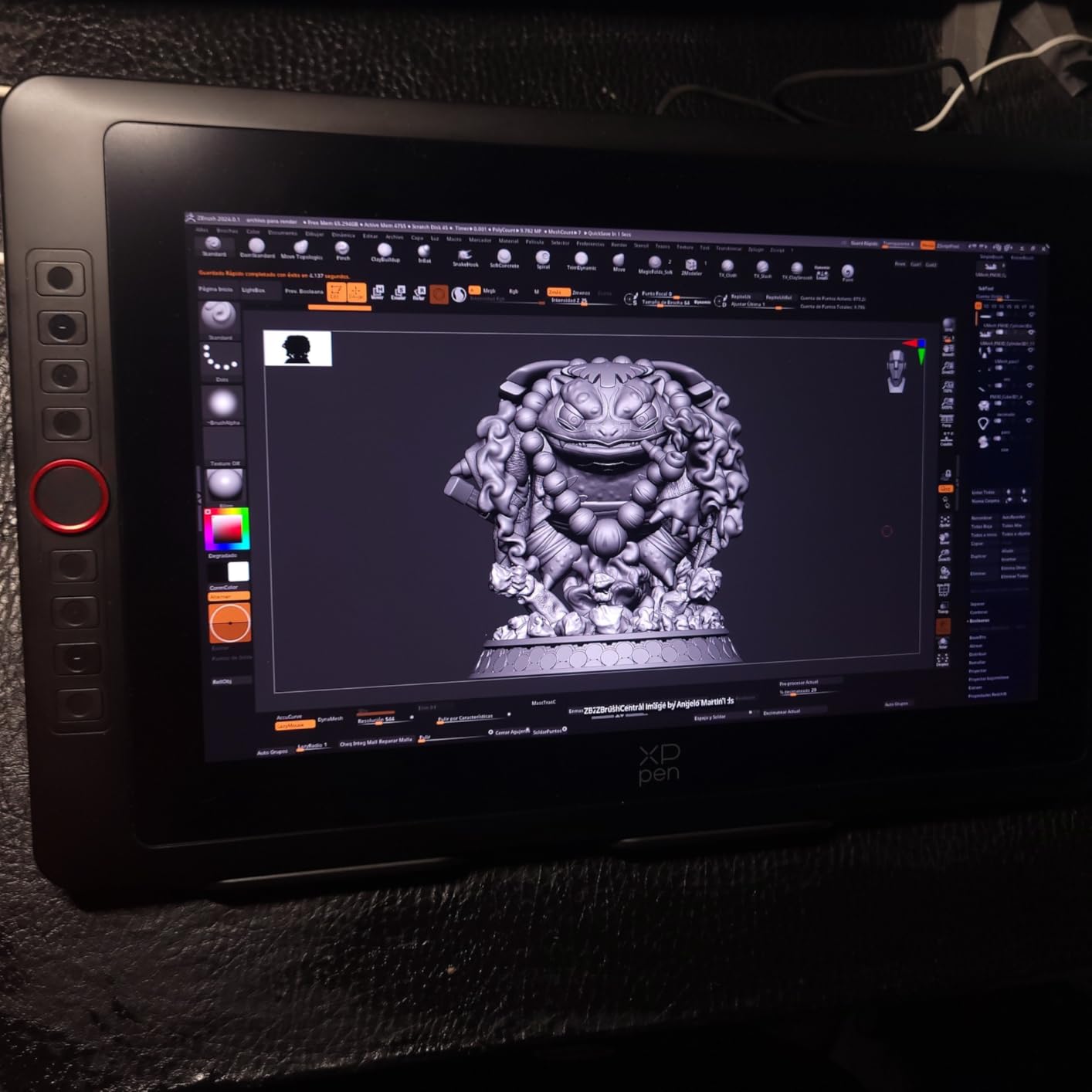
The six customizable shortcut keys plus the slim touch bar live along the side of the screen and I mapped them to undo, brush size, zoom, and layer toggle in Photoshop. The touch bar doubles as a scroll wheel that feels genuinely useful rather than gimmicky. Color reproduction at 72 percent NTSC and full sRGB is good enough for web illustration, comic art, and most photo edits, though I would not trust it for print-grade color matching without calibration.
Setup is where the Artist 12 trips up beginners. The unit needs both an HDMI cable and a USB-A data connection to your computer, plus power. On modern MacBooks and thin Windows laptops, that usually means two adapters. Once the drivers are installed the experience is stable, but the first 30 minutes are not plug-and-play.
For whom it works best
The XPPen Artist 12 is the right pick for students, hobbyists, and freelance illustrators who want a portable 1080p drawing screen with reliable stylus feel and a budget-friendly ticket. If you travel, work in coffee shops, or want a secondary screen that lives on a desk drawer, this is the one to buy first.
For whom it falls short
If you need a fully laminated screen with zero parallax for fine ink work, or you want a color-accurate panel for print photo editing, step up to the XPPen Artist 15.6 Pro or the HUION Kamvas Pro 16. Power users running color-managed retouching workflows need something with Adobe RGB coverage beyond 90 percent.
2. XPPen Artist 15.6 Pro – Best Value Mid-Range Pen Display
15.6″ Drawing Tablet with Screen XPPen Artist 15.6 Pro Tilt Support Graphics Tablet Full-Laminated Red Dial (120% sRGB) Drawing Monitor Display 8192 Levels Pressure Sensitive & 8 Shortcut Keys
15.6 inch FHD 120% sRGB
Red Dial + 8 shortcut keys
Full-laminated PA2 stylus
Pros
- Vibrant 120% sRGB color with 178 degree viewing angle
- Full-laminated screen virtually eliminates parallax
- Red Dial speeds up brush and zoom adjustments
- Compatible with Mac
- Windows
- Linux
- and Chrome OS
- Lightweight at 3.3kg and stays cool during use
Cons
- Included stand only supports one fixed angle
- Drivers can be finicky on M1 MacBooks
- Pen button customization may not always save
The XPPen Artist 15.6 Pro is the model I recommend to anyone asking for a 15-inch drawing monitor that punches above its weight. The full-laminated display removes the air gap between the glass and the LCD, which is the single biggest reason budget pen displays feel like you are drawing slightly under the pen tip. After two months with this panel, parallax is essentially a non-issue for linework and ink.
Color reproduction at 120 percent sRGB and 88 percent NTSC is genuinely impressive for this tier. I edited a batch of travel photos in Lightroom and the greens and skin tones looked accurate enough that I would trust it for web publishing without recalibration. The 178-degree viewing angle means the color holds up even when I sit back in my chair to study a composition.
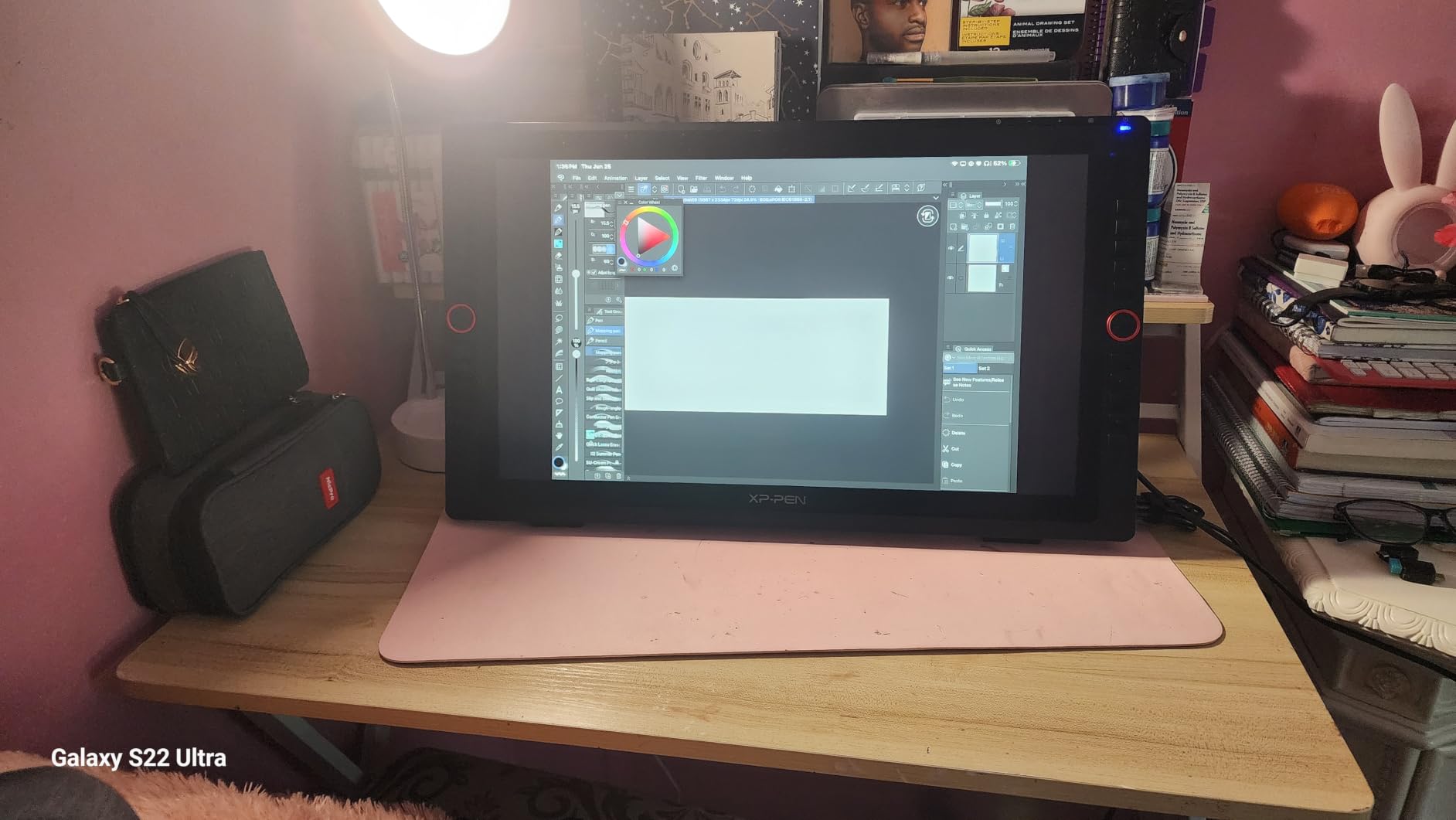
The Red Dial is the underrated hero of this display. By default it controls zoom, brush size, and canvas rotation, but you can rebind it to anything from scroll to undo. I left it on zoom and shaved real minutes off every illustration session. The eight fully customizable shortcut keys cover the rest of the standard Photoshop shortcuts and saved me from keyboard acrobatics during 6-hour painting days.
The PA2 stylus is comfortable in the hand and the 8192 pressure levels feel indistinguishable from the more expensive 16K options on cheaper displays. Tilt support at 60 degrees works well in Clip Studio Paint for shading. At 3.3 kilograms it is heavier than the 11.6-inch models but still light enough to reposition on the desk for different working angles.
For whom it works best
Artists stepping up from a screenless tablet or a smaller 11-inch display will find the XPPen Artist 15.6 Pro hits the sweet spot for size, color, and price. It is also our pick for Linux and Chromebook users since the driver stack is well supported across both ecosystems.
For whom it falls short
If you need an adjustable stand for long ergonomic sessions, you will want to budget for an aftermarket VESA arm or a third-party stand – the included one is fixed at a single angle. Apple Silicon MacBook owners should plan for a driver troubleshooting session after macOS updates.
3. XPPen Artist 12 Pro – Compact Pen Display With the Red Dial
XPPen Artist12 Pro 11.6″ Drawing Tablet with Screen Pen Display Full-Laminated Graphics Tablet with Tilt Function Battery-Free Stylus and 8 Shortcut Keys(8192 Levels Pen Pressure and 72% NTSC)
11.6 inch fully laminated
Red Dial + 8 express keys
8192 levels with 60 degree tilt
Pros
- Fully laminated screen with virtually zero parallax
- Red Dial enhances brush and zoom workflow
- 8 customizable express keys for productivity
- Battery-free stylus with no charging required
- Wide OS support including ChromeOS and Linux
Cons
- Must be connected to a host device to function
- Cables and connectors can feel cluttered initially
The XPPen Artist 12 Pro takes everything I loved about the standard Artist 12 and adds the fully laminated display plus the Red Dial, in roughly the same chassis. That combination makes it the most refined 11.6-inch pen display XPPen sells, and one of the best small pen displays for illustrators who travel.
The single biggest difference between this and the standard Artist 12 is parallax. With full lamination, the cursor lands directly under the nib instead of a millimeter or two below it. Drawing fine lines and precise selections in Photoshop felt noticeably cleaner, and I stopped correcting for that little offset that I had trained myself to compensate for on unlaminated screens.
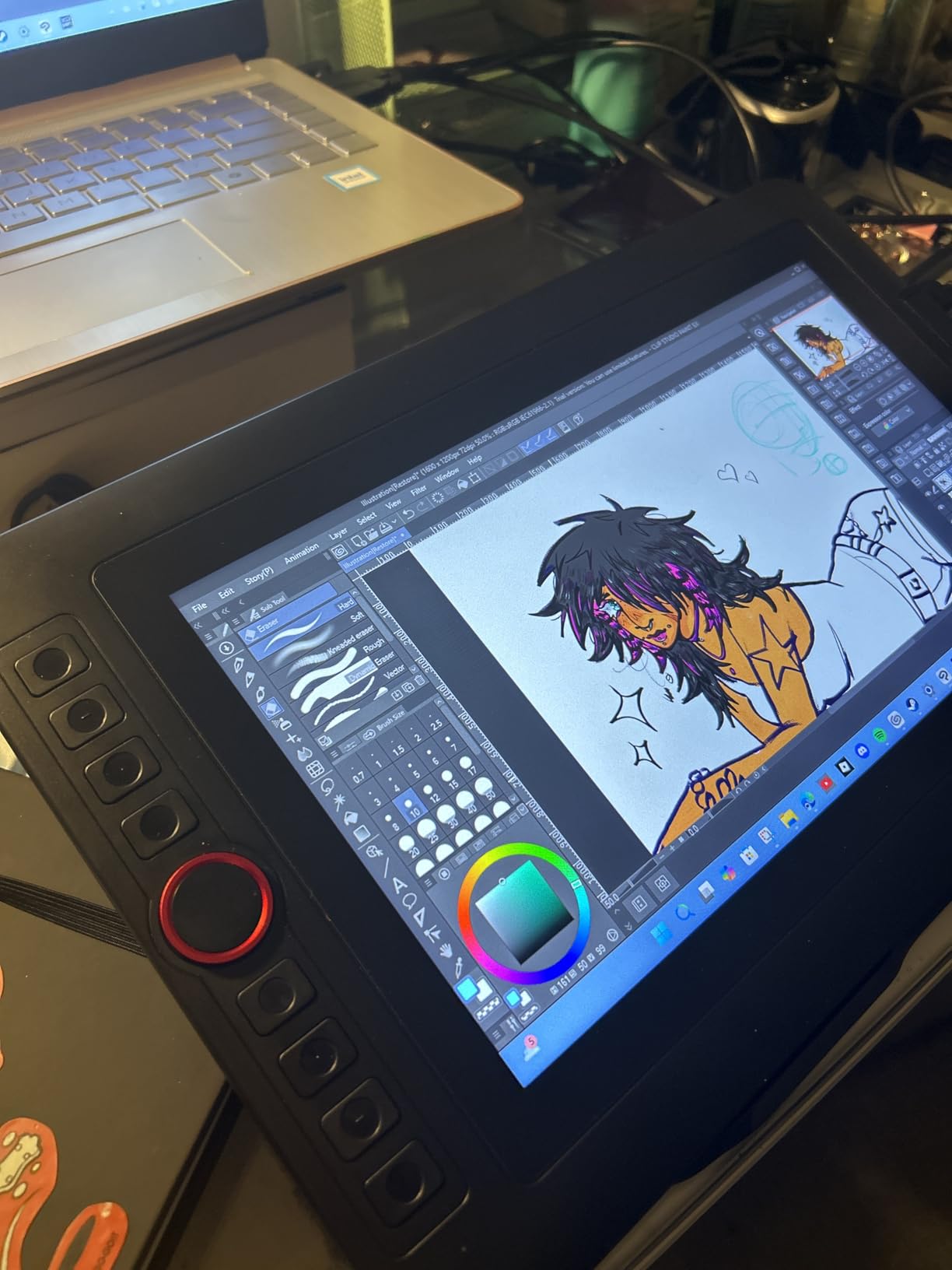
The Red Dial on the Artist 12 Pro is the same implementation as on the 15.6 Pro model, which means you get the same productivity boost for brush sizing and zoom. Combined with eight express keys, you essentially have a fully customizable control surface for Photoshop, Clip Studio, or Krita without touching the keyboard. For tablet-only illustrators, that is a real workflow win.
The 8192 pressure levels with 60-degree tilt support deliver smooth gradients and natural brush angles. The P05 stylus is light, balanced, and battery-free. Tilt auto-alignment in Photoshop and Clip Studio worked correctly out of the box on both Windows and macOS. The 3-in-1 cable is a small quality-of-life improvement over the Artist 12’s separate HDMI plus USB layout.
For whom it works best
If portability matters but you do not want to give up the Red Dial workflow, the Artist 12 Pro is the sweet spot. It is also a strong upgrade for first-time pen display buyers who skipped the unlaminated Artist 12 and want zero parallax from day one.
For whom it falls short
The Artist 12 Pro is not a standalone tablet – it must remain tethered to a host PC or Mac. If you need to draw without a computer, look at pen computers like the XPPen Magic Drawing Pad instead. The 3-in-1 cable works but it is still three connections in one sleeve, so plan your cable management accordingly.
4. GAOMON PD1161 – Best Budget Pen Display for Beginners
GAOMON PD1161 Drawing Tablet with Screen, Tilt, 8 Shortcut Keys, 11.6″ FHD
11.6 inch FHD 100% sRGB
8192 levels with tilt
AP50 stylus with 8 keys
Pros
- Excellent value for entry-level pen display
- Battery-free AP50 stylus with good pressure response
- Lightweight and portable design
- Vivid color with 100% sRGB coverage
- Responsive GAOMON customer support
Cons
- Display runs at a low refresh rate around 30Hz
- Color accuracy trails premium models
- Requires USB
- HDMI
- and external power cables
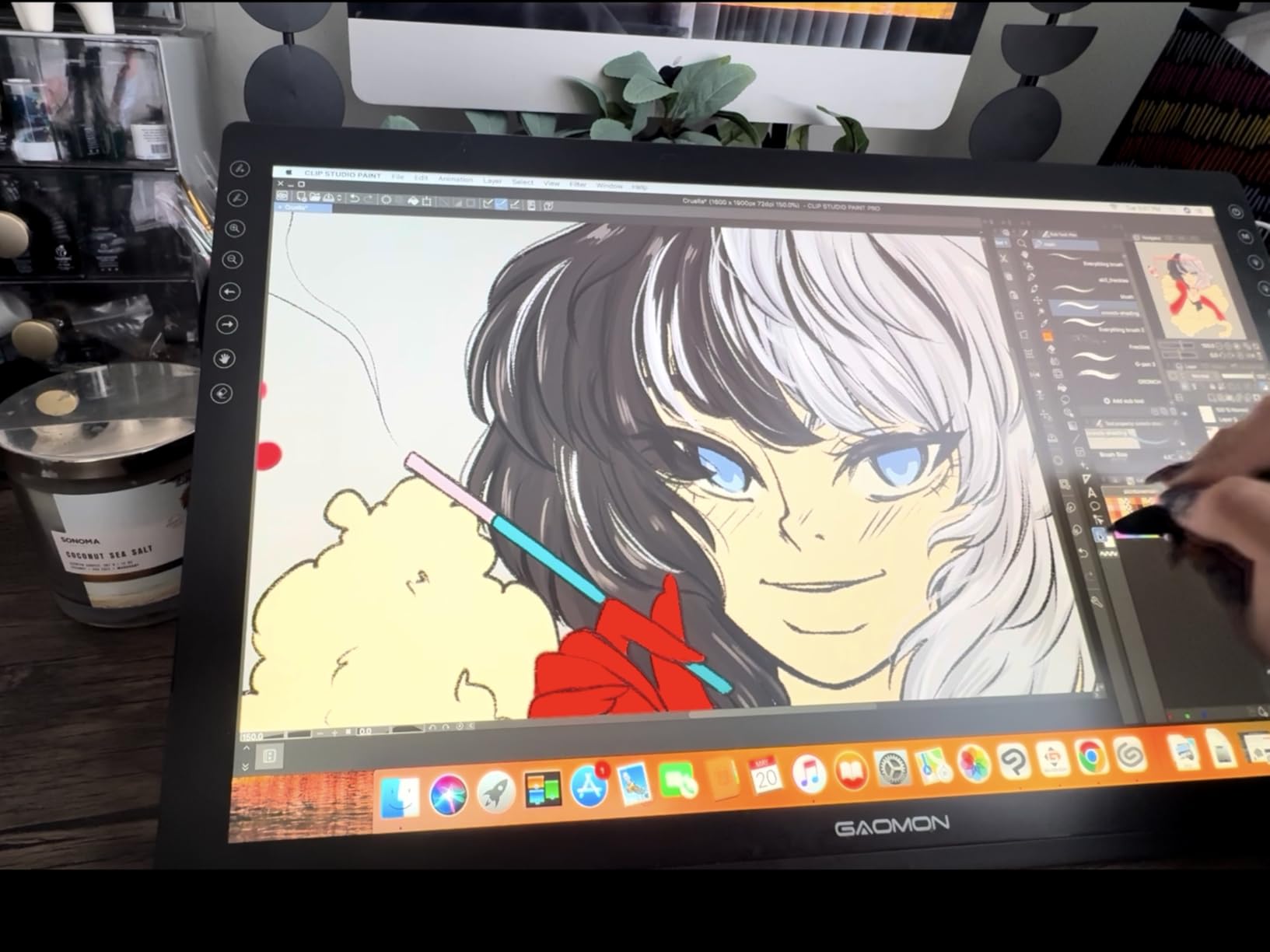
The GAOMON PD1161 is the pen display I point first-time buyers toward when they ask whether they should spend on a Wacom or save with a budget brand. At this price tier you get a real 11.6-inch 1920 by 1080 IPS panel, an 8192-pressure-level battery-free stylus, and enough color coverage for digital illustration and hobbyist photo editing. Reviewers consistently cite GAOMON’s customer support as a deciding factor.
The pre-installed matte film is one of my favorite touches on this display. It gives the glass a paper-like tooth that helps with sketchy line work and reduces glare dramatically in well-lit rooms. For students drawing in dorm rooms or bright home offices, that matte surface is a genuine advantage over the glossier coatings on competing budget panels.
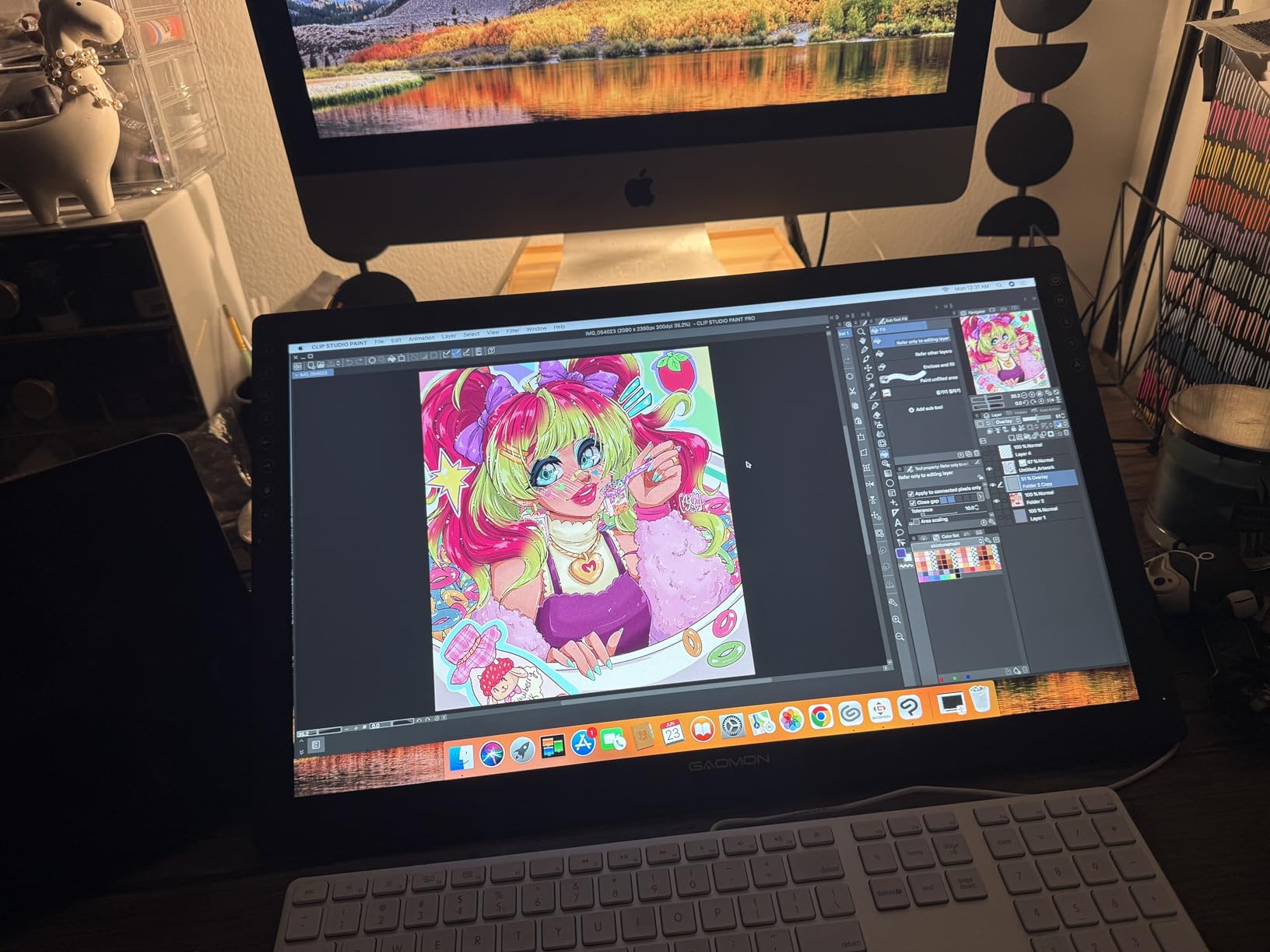
The AP50 stylus is comfortable in the hand and the 8192 pressure levels translate to predictable line weight variation. Eight customizable press keys plus two pen buttons cover the core shortcuts. For Krita, Medibang, Clip Studio, and Photoshop, the default mapping is sensible. Tilt support works as advertised in supported applications.
Where the PD1161 reveals its budget roots is refresh rate – the display runs at roughly 30Hz which makes fast scrolling and pan gestures feel slightly choppy compared to 60Hz panels. It is not unusable, but artists used to modern phone or laptop screens will notice the difference. Color reproduction at 72 percent NTSC and full sRGB is fine for web work but not for print color matching.
For whom it works best
The GAOMON PD1161 is the right first pen display for students, hobbyists, and complete beginners. If you want to test whether a screen tablet improves your workflow without committing to a higher-end panel, the PD1161 is the safest bet on the market.
For whom it falls short
If you need a smooth 60Hz drawing experience or accurate out-of-box color for photo retouching, look at the XPPen Artist 15.6 Pro or HUION Kamvas Pro 16 instead. The PD1161 also requires three separate cables (USB, HDMI, power), so cable management needs planning on minimalist desks.
5. HUION Kamvas Pro 16 – Best Wacom Alternative at Half the Price
HUION Kamvas Pro 16 Drawing Tablet with Screen,120% sRGB, Touch Bar,15.6″
15.6 inch 120% sRGB 92% AdobeRGB
Full-laminated glass
6 express keys + touch bar
Pros
- Vibrant 120% sRGB with 92% AdobeRGB color gamut
- Full-laminated etched glass with paper-like texture
- Solid metal back construction with no flex
- HUION customer support resolves warranty claims quickly
- Touch bar adds useful workflow shortcuts
Cons
- Power button sits close to macro keys
- Some users report screen failures handled via warranty
- Setup documentation is sparse
The HUION Kamvas Pro 16 has earned its reputation as the Wacom Cintiq alternative you buy when you want a 15-inch drawing screen without paying the Wacom premium. The full-laminated etched glass surface gives strokes a slightly textured, paper-like drag that I genuinely enjoyed during a week of digital sketching. Reviewers consistently mention HUION’s customer support – warranty replacements on this model arrive promptly.
Color reproduction is the headline spec: 120 percent sRGB and 92 percent AdobeRGB at a 1000:1 contrast ratio. For photo retouchers and concept artists working in color-managed pipelines, that coverage is enough to trust soft-proofing without immediately reaching for a calibrator. The 178-degree viewing angle holds up well across collaborative review sessions.
Build quality is a clear step above the budget tier. The metal back plate has no flex, the hinge on the adjustable stand (ST200) is smooth from 20 to 60 degrees, and the 3-in-1 USB-C cable keeps the desktop tidy. Six customizable express keys plus the touch bar cover the standard Photoshop shortcuts and the touch bar feels natural for brush size scrubbing.
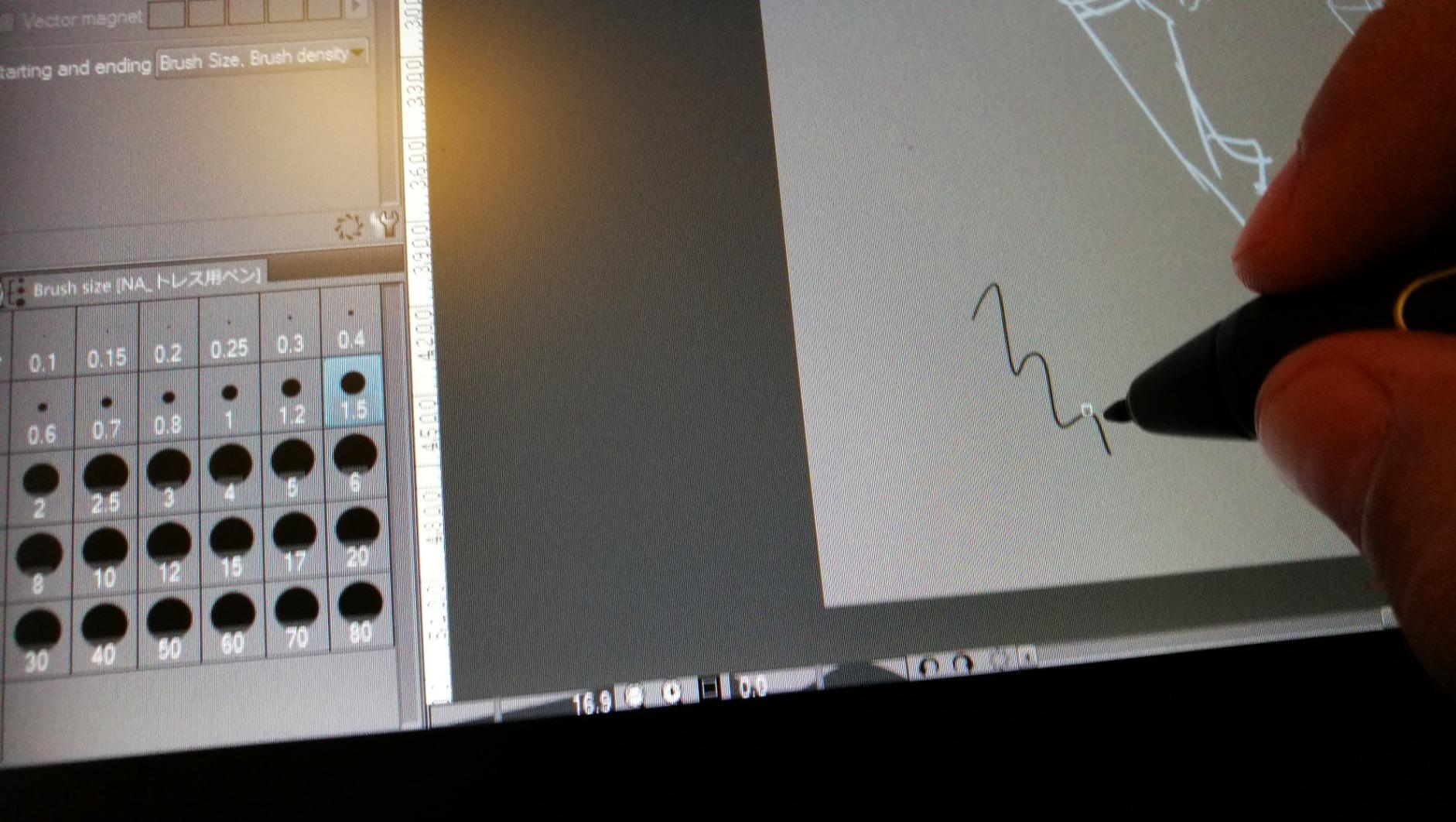
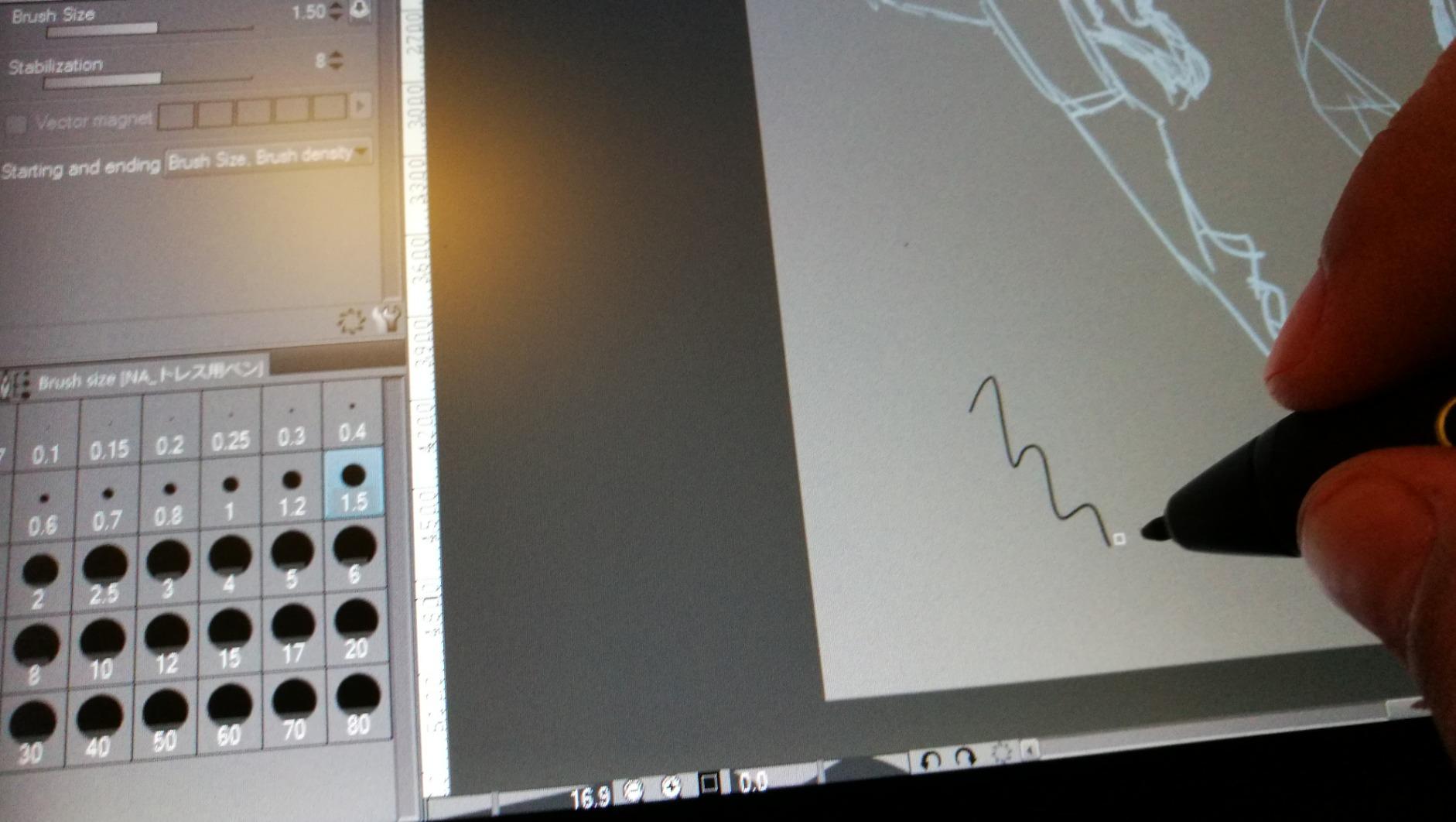
The PW100 battery-free pen supports 60-degree tilt recognition and two programmable buttons. Pressure response at 8192 levels feels linear and predictable in Clip Studio Paint and Photoshop. The main hardware quirk is the power button placement – it sits close to the express keys and I accidentally hit it twice in my first hour. Once you learn its position it stops being an issue.
For whom it works best
The Kamvas Pro 16 is the right pen display for freelance illustrators and photo retouchers who want a 15-inch screen with strong color coverage and full lamination, without paying the Wacom Cintiq tax. Linux users will appreciate the explicit Ubuntu support in the driver package.
For whom it falls short
Some early production units have shipped with screen defects, though HUION’s warranty service handles replacements well. If you want a fully featured shortcut remote out of the box, the Kamvas Pro 16 only ships with on-frame keys – the Keydial Remote is sold separately.
6. XPPen Artist 13.3 Pro – Best Portable 13-Inch Pen Display
XPPen Artist 13.3 Pro 13.3″ Drawing Tablet with Screen, 16K, Full-Laminated
13.3 inch FHD 123% sRGB
16384 pressure levels
Red Dial + 8 shortcut keys
Pros
- Outstanding color accuracy at 123% sRGB
- Battery-free stylus with 16384 pressure levels
- Red Dial enhances brush and zoom workflow
- Lightweight and portable at only 2 kg
- Easy transition for screenless tablet upgraders
Cons
- Included stand has one fixed angle and feels unstable
- Calibration may need adjustment after cable disconnects
- Pen buttons may trigger accidentally
The XPPen Artist 13.3 Pro is the pen display I recommend when someone wants the sweet spot of 13.3 inches – large enough for detailed illustration, small enough to fit a laptop bag. The 16384 pressure levels are overkill for most artists but the smooth line weight transition is genuinely noticeable compared to 8192-level displays. The fully laminated screen with 88 percent NTSC and over 123 percent sRGB color gamut produces punchy, accurate colors.
At 2 kilograms it is the lightest 13-inch pen display I have tested. I carried it to a friend’s studio in a backpack along with a 14-inch laptop and barely noticed the weight. The included Red Dial and 8 shortcut keys let you replicate a Cintiq-style workflow without buying a separate remote.
The X3 Pro stylus on this model is a real upgrade over the older P05 design. Low Initial Activation Force means hairline strokes appear with almost no pressure, which is exactly what you want for sketching and inking. The 60-degree tilt support is reliable in Photoshop and Clip Studio. Battery-free means I never have to remember to charge it before a deadline.
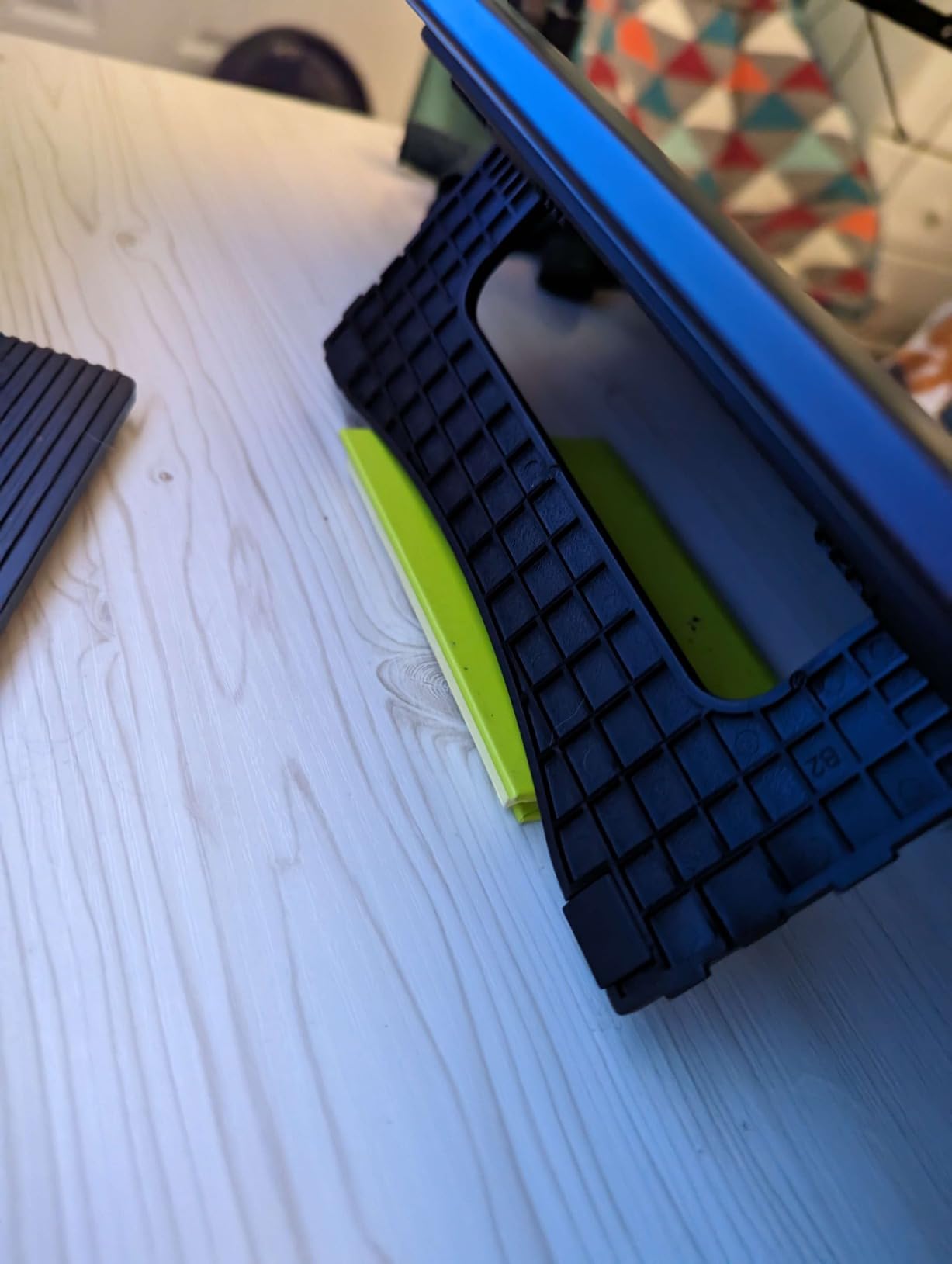
Where the Artist 13.3 Pro cuts corners is the included stand – it has a single fixed angle and feels flimsy compared to the displays themselves. Most owners quickly replace it with a third-party adjustable stand or VESA arm. Calibration may need a re-run after disconnecting and reconnecting cables, which is a minor nuisance during travel.
For whom it works best
The Artist 13.3 Pro is ideal for illustrators who need a portable 13-inch screen with pro-level color and stylus feel. It is also a strong upgrade for artists who started with the older XPPen Artist 12 and want 16K pressure levels and a laminated display in a similar footprint.
For whom it falls short
If you need a sturdy multi-angle stand in the box, budget for an aftermarket stand right away. Users who want a stylus with very firm button click feedback may find the X3 Pro’s soft buttons too easy to press accidentally.
7. HUION KAMVAS 22 – Best Large Pen Display for Studio Work
HUION KAMVAS 22 120% sRGB Drawing Tablet with Screen 21.5 inch
21.5 inch FHD 120% sRGB
PenTech 3.0 stylus
Two USB-C ports
Pros
- Massive 21.5 inch working area
- Vibrant 120% sRGB color reproduction
- Ergonomic adjustable stand 20 to 80 degrees
- Solid PenTech 3.0 stylus performance
- Affordable Wacom alternative at this size
Cons
- No built-in express keys - Keydial Remote sold separately
- Pen buttons can be triggered accidentally
- Takes up significant desk space
The HUION KAMVAS 22 is the pen display to buy when you want a Cintiq-sized 21.5-inch canvas without paying Cintiq prices. At a fraction of the cost of comparable Wacom models, you get a full HD IPS panel, 120 percent sRGB color, and a smooth adjustable stand. For comic artists, animators, and concept artists working with broad strokes, the extra screen real estate pays off immediately.
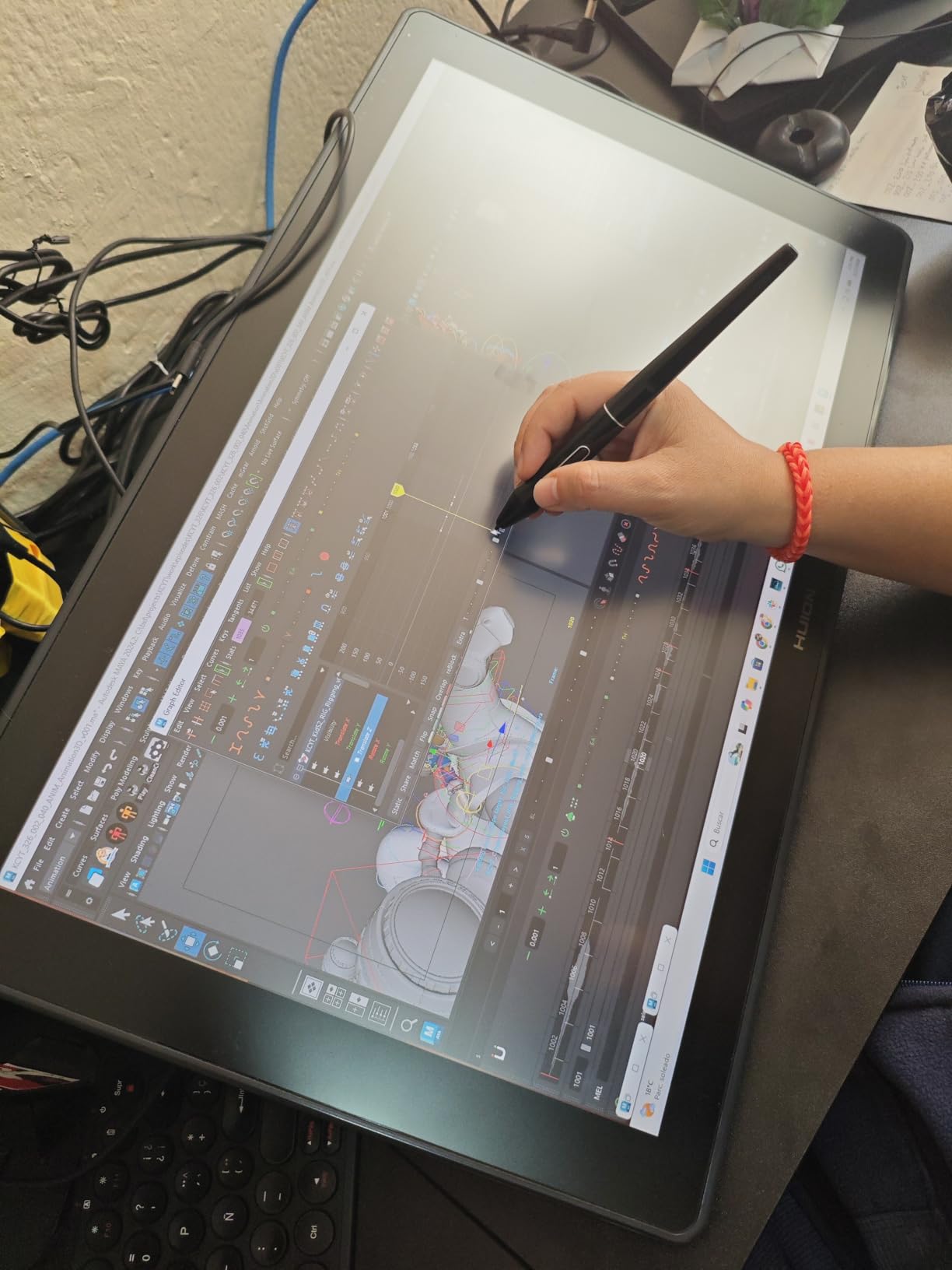
The 178-degree viewing angle and anti-glare matte film make the KAMVAS 22 comfortable to use at any working position. I leaned it back to nearly flat for inking and the panel stayed color-accurate. The PenTech 3.0 stylus tracks well at the panel’s edges, which is a common failure point on cheaper large displays.
The 3-in-1 cable plus a secondary USB-C port give you two connectivity options. Most users will run the 3-in-1 cable to their desktop for simplicity. If your laptop supports USB-C DisplayPort alt mode, a single USB-C cable carries both video and power to the panel – one of the cleanest desk setups in this roundup.
The KAMVAS 22 has no on-frame express keys, which is a real omission for studio workflows. HUION sells the Keydial Remote separately and it is worth the add-on if you intend to use this as a primary illustration display. The included stand adjusts from 20 to 80 degrees and holds position firmly even during heavy-handed sketching.
For whom it works best
Studio-bound illustrators, comic artists, and animators who want a large drawing canvas at a mid-range price will find the KAMVAS 22 hard to beat. Pair it with the Keydial Remote for a complete workstation.
For whom it falls short
If you do not have the desk space for a 21.5-inch panel, drop down to the 13.3-inch or 15.6-inch options above. Without the Keydial Remote, the KAMVAS 22 misses the workflow shortcuts that make Wacom Cintiqs productive day to day.
8. HUION Kamvas 13 Gen 3 – Best for Color-Accurate Portable Work
HUION Kamvas 13 (Gen 3) Drawing Tablet with Screen 16K Pressure PenTech 4.0
13.3 inch Canvas Glass 2.0
PenTech 4.0 16K stylus
Delta E under 1.5
Pros
- PenTech 4.0 stylus with industry-leading 2g IAF
- Excellent factory Delta E under 1.5 calibration
- Ultra-thin 11.7mm profile and lightweight at 865g
- Dual dials and 5 silent press keys enhance productivity
- Paper-textured Canvas Glass 2.0 surface
Cons
- Out-of-box color settings may need calibration
- Driver stability can occasionally cause freezing
- Some accessories reportedly missing from packages
The HUION Kamvas 13 Gen 3 is the most refined 13-inch pen display Huion has shipped to date. The PenTech 4.0 stylus with 2-gram Initial Activation Force and 16384 pressure levels delivers some of the lightest, most responsive strokes I have tested on any pen display at this size. The factory Delta E under 1.5 calibration is a meaningful upgrade for photo retouchers who care about color accuracy out of the box.
Build quality is excellent for the price tier. At 865 grams and 11.7 millimeters thin, it is the lightest and slimmest 13-inch pen display on this list. The Canvas Glass 2.0 surface with nano-etching reduces glare and sparkle more effectively than the matte films used on previous Huion models. Drawing on it feels closer to paper than glass.
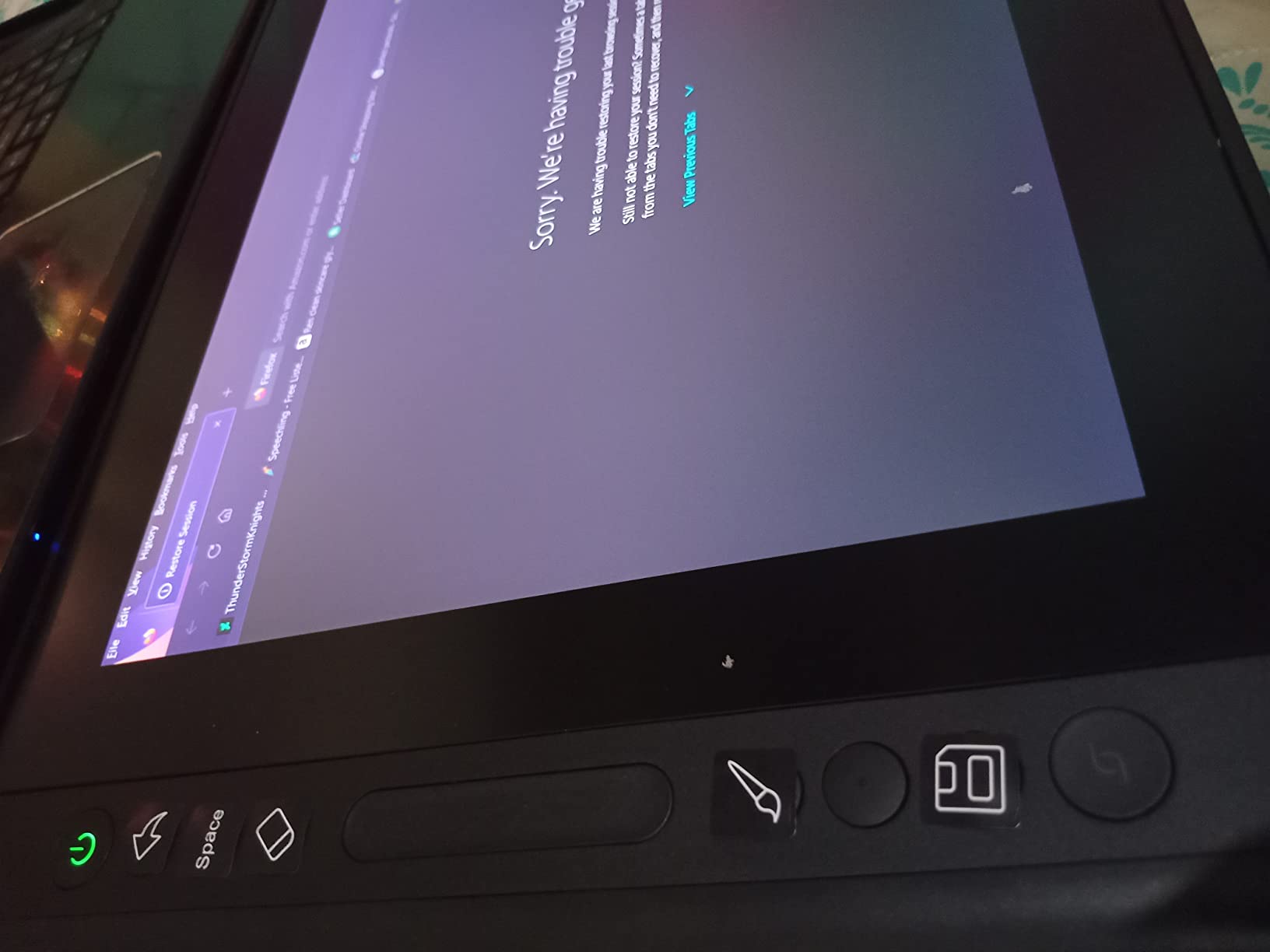
The dual dial controllers plus five silent press keys are an underrated productivity boost. I mapped the left dial to zoom and the right dial to brush size, then assigned undo, save, layer toggle, color picker, and brush opacity to the silent press keys. That setup covered roughly 90 percent of my daily Photoshop actions without touching the keyboard.
The symmetrical design works equally well for left- and right-handed users. The 99 percent sRGB and 90 percent Adobe RGB coverage is solid for photo retouching. Android support via USB-C DP alt mode means you can also use it as a drawing display for some Android phones and tablets, which is a useful bonus.

For whom it works best
The Kamvas 13 Gen 3 is the right pick for photo editors and color-conscious illustrators who want a portable 13-inch screen with class-leading factory calibration. It is also an excellent choice for users who sketch on the couch or want a slim travel companion.
For whom it falls short
Driver stability can occasionally cause freezing on Windows 11, so plan to keep drivers updated. Out-of-the-box colors may need manual tuning for the most demanding print workflows. A small number of buyers report missing felt nibs in the package, so check the included accessories carefully on arrival.
9. XPPen Artist Pro 14 Gen 2 – Best Pen Display With 16K Stylus and Mini Keydial
XPPen Artist Pro 14 Gen2 Drawing Tablet with Screen 14 inch Graphic Art Tablet with Full Laminated Anti-Glare Screen 16384 Pressure Levels X3 Pro Battery-Free Stylus 123% sRGB Tilt Stand Mini Keydial
14 inch WUXGA
X3 Pro 16K stylus
123% sRGB with Mini Keydial
Pros
- Industry-first 16K pressure levels with X3 Pro stylus
- Excellent 99% sRGB color accuracy with Delta E under 2.2
- Full-laminated anti-glare etched glass
- Wireless Mini Keydial remote included
- Versatile display and tablet mode switch
Cons
- Screen colors can be oversaturated out of the box
- Heat builds up at 100% backlight near ports
- Initial driver setup can take time
The XPPen Artist Pro 14 Gen 2 is the premium 14-inch entry in XPPen’s lineup and one of the few pen displays at this size that ships with a wireless shortcut remote. The X3 Pro smart chip stylus with 16K pressure levels is the headline spec, but the Mini Keydial remote is the daily-driver upgrade that you will actually feel during long sessions.
The 14-inch 1920 by 1200 panel with a 16:10 aspect ratio gives you slightly more vertical drawing space than a typical 16:9 13-inch display – a small change that makes a real difference for full-page illustrations and UI mockups. The 99 percent sRGB coverage with Delta E under 2.2 produces accurate, vivid color right out of the box after a quick calibration.
The Mini Keydial remote is genuinely useful. It pairs wirelessly and gives you a dial plus eight customizable keys within thumb reach. I assigned my standard Photoshop mapping to it within five minutes and stopped reaching for the function keys entirely. The display also includes on-frame shortcut buttons, so you have two layers of physical controls available.
The foldable built-in stand adjusts to multiple angles without any assembly. A one-click switch toggles between display mode and tablet mode, which is handy if you want to use the Artist Pro 14 Gen 2 as a screenless pen tablet on the couch. TUV SUD certification for reduced blue light is a real plus during late-night sessions.
For whom it works best
Artists who want a 14-inch screen with pro-level color and a wireless shortcut remote out of the box will find the Artist Pro 14 Gen 2 hard to beat. It is also a strong choice for users who want both a pen display and a traditional pen tablet in one device.
For whom it falls short
Colors can look oversaturated at default settings, so budget 15 minutes for a calibration pass. Heat builds up at maximum backlight near the ports during long sessions. The X3 Pro stylus driver takes longer to install than older XPPen models – set aside time for the initial setup.
10. XPPen Artist 22 2nd Generation – Best Large Pen Display With USB-C
Drawing Tablet with Screen XPPen Artist 22 2nd Computer Graphics Tablet 122% sRGB with Tilt Function Battery-Free Stylus Adjustable Stand, 21.5inch Pen Display Compatible with Windows PC, Mac, Linux
21.5 inch FHD 122% sRGB
PA6 stylus 8ms response
USB-C single cable option
Pros
- Massive 21.5 inch working area with 122% sRGB
- Highly adjustable stand 16 to 90 degrees
- Battery-free PA6 stylus with 8ms response
- USB-C to USB-C single-cable connectivity option
- Strong software compatibility including Blender 3D
Cons
- Heavy at 7.98 kg so less portable
- Initial setup can be challenging
- Pre-installed matte film scratches easily
The XPPen Artist 22 2nd Generation is the 21.5-inch pen display that finally delivers a clean single-cable USB-C setup without breaking into Wacom pricing territory. For illustrators and 3D artists with a USB-C equipped laptop or desktop, you can run video, data, and power over one cable and clear the rest of the cable clutter off your desk.
The 21.5-inch 1920 by 1080 panel with 122 percent sRGB and 90 percent Adobe RGB coverage produces accurate color for digital painting and matte painting workflows. The PA6 battery-free stylus with 60-degree tilt and 8192 pressure levels feels responsive, and the 8-millisecond response time keeps strokes tracking closely even during fast gestures.
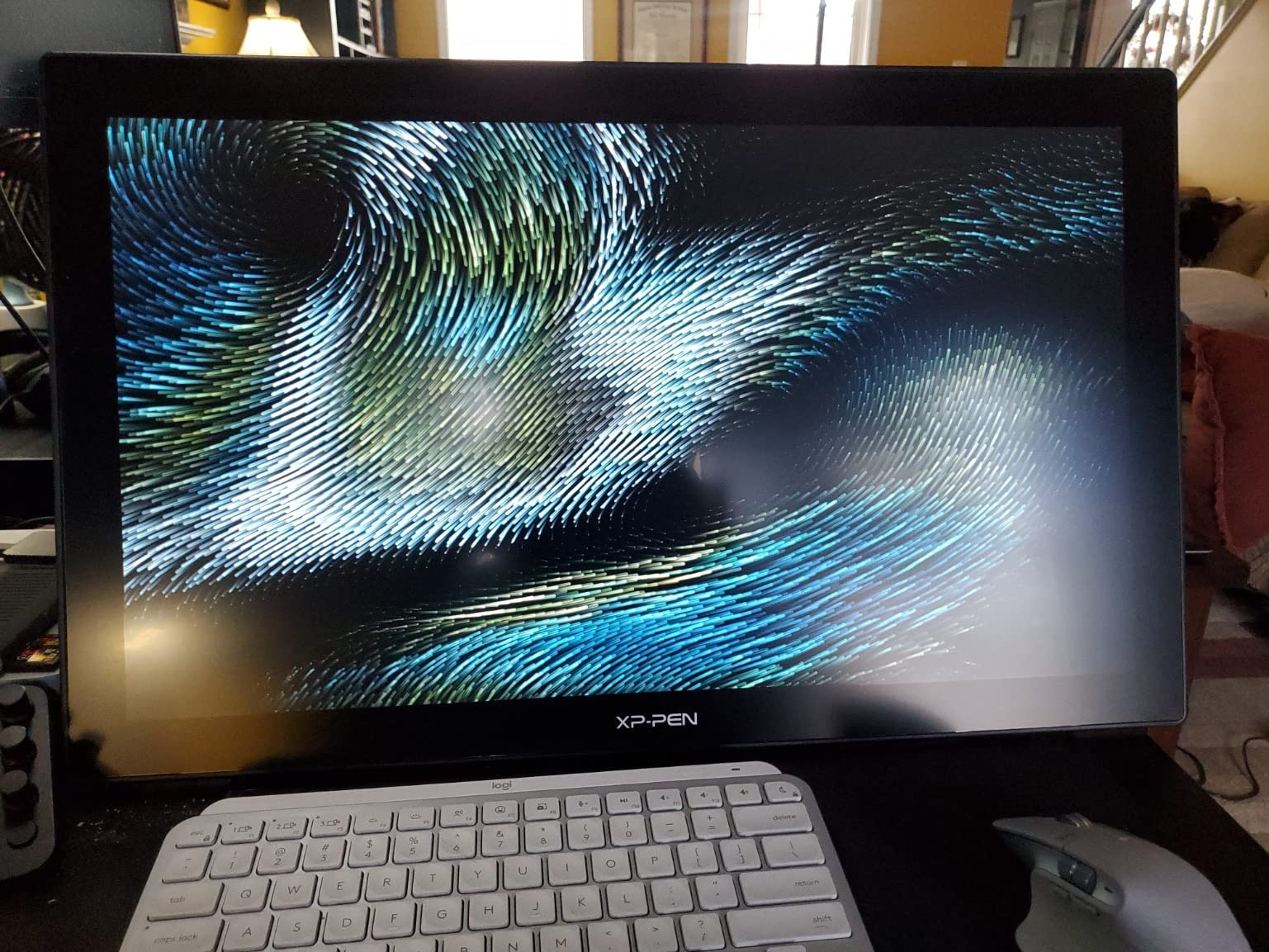
The adjustable stand is the most flexible in this roundup. It adjusts from 16 to 90 degrees, which lets you lay the panel nearly flat for inking or stand it upright for review. The cable slot and detachable back cover keep cables routed cleanly behind the unit. Reviewers on Blender forums specifically mention this model as a good fit for sculpting workflows in Blender 3D.
At 7.98 kilograms, the Artist 22 2nd is a desk-bound panel rather than a portable one. The pre-installed matte film scratches more easily than the films on competing models, so plan to replace it after 6 to 12 months of heavy use. Initial driver setup can be tricky on Linux distributions without official packages.
For whom it works best
Studio artists, matte painters, and 3D modelers who want a large panel with clean cable management will appreciate the Artist 22 2nd’s USB-C single-cable option. It is also a strong choice for animators who want a wide drawing surface for timeline-based work.
For whom it falls short
If you need a portable panel, look elsewhere – the 8 kg weight rules out daily travel. The matte film wears faster than competing displays, so budget for a replacement film in your first year. Linux users on uncommon distributions may need to build drivers from source.
How to Choose the Best Pen Display for Your Workflow?
Picking the best pen displays comes down to four questions: what size, what resolution, what stylus technology, and what your computer can connect to. Below is the framework our team uses when readers ask us for a recommendation.
Screen size and active drawing area
11.6-inch panels like the XPPen Artist 12 and GAOMON PD1161 are the most portable and the cheapest, but the small drawing area makes long illustration sessions feel cramped. 13.3-inch displays such as the XPPen Artist 13.3 Pro and HUION Kamvas 13 Gen 3 are the consensus sweet spot for portable illustration. 15.6-inch panels give you more drawing room and remain light enough to reposition. 21.5-inch panels like the HUION KAMVAS 22 and XPPen Artist 22 2nd are studio-bound and best for comic art, animation, and photo retouching.
Resolution and color accuracy
Full HD (1920 by 1080) is fine on 11 to 15-inch panels – pixel density stays high enough that strokes look crisp. For 21.5-inch panels and color-managed photo work, consider stepping up to QHD or 4K when budget allows. Color accuracy above 90 percent Adobe RGB and a Delta E below 2 are the thresholds most photo retouchers should aim for. Every model in our top 10 clears 100 percent sRGB and most clear 90 percent Adobe RGB.
Stylus technology and pressure sensitivity
8192 pressure levels are the current standard and feel smooth for the vast majority of illustrators. 16384 levels (XPPen X3 Pro and HUION PenTech 4.0) deliver finer low-pressure response – useful for hairline work and very soft shading. Tilt support at 60 degrees is now standard and works well in Photoshop, Clip Studio, and Krita. Battery-free EMR-style styluses are universal across this roundup, so charging is one less thing to think about.
Connectivity and cable management
Older pen displays require HDMI plus USB plus power – three cables. Newer models consolidate to a 3-in-1 cable or full USB-C single-cable setups. If your laptop supports USB-C DisplayPort alt mode, look for a pen display with USB-C input (XPPen Artist 22 2nd, HUION KAMVAS 22, XPPen Artist Pro 14 Gen 2). For desktop users, the 3-in-1 cable approach is usually tidier than separate HDMI and USB runs.
Brand comparison: Wacom vs Huion vs XPPen vs Xencelabs vs GAOMON
Wacom remains the gold standard for build quality, driver stability, and premium stylus feel, but the price premium is significant. Reddit users in r/drawingtablet consistently point to Huion and XPPen as the best value alternatives for budget-conscious buyers, with Huion edging ahead on customer service and XPPen on stylus innovation. Xencelabs earns praise as a “Wacom-quality-for-less” option but is not represented in our lineup this round. GAOMON fills the entry-level niche with reliable budget panels.
Long-time Huion users report reliability on par with Wacom at a fraction of the price after 8+ years of daily use. Wacom Cintiq Pro is widely cited as “amazing but pricey” by school and student buyers. XPPen and Huion dominate recommendations in r/drawingtablet for budget-conscious artists in 2026.
OS compatibility: Windows, macOS, Linux, ChromeOS, Android
Windows 10 and 11 plus macOS 10.12 and later are universally supported across our picks. Linux support varies – the XPPen Artist 15.6 Pro, XPPen Artist 12 Pro, and HUION Kamvas Pro 16 list explicit Linux (Ubuntu) compatibility, while Wacom has the most polished Linux driver experience of any brand. ChromeOS support is improving, with XPPen and HUION both publishing ChromeOS drivers for most current models. Android support via USB-C DisplayPort alt mode is available on the XPPen Artist Pro 14 Gen 2 and HUION KAMVAS 22.
Pen display vs pen tablet vs pen computer
Pen tablets (screenless) are cheapest and most portable but require eye-hand coordination across two screens. Pen displays (this roundup) show your strokes under the pen tip and dramatically reduce that coordination gap. Pen computers run their own operating system and need no host PC – the XPPen Magic Drawing Pad and Huion Kamvas Studio 16 are popular standalone options. For most artists who already own a capable PC or Mac, a pen display hits the best balance of price, performance, and software flexibility.
For more on display categories outside creative work, our guides to portable projectors for tournament bracket displays and tournament countdown clock displays cover specialty display use cases. For broader buying decisions across tech, see our digital scoring displays guide.
Common pain points worth knowing before you buy
Forum users consistently flag parallax and nib lag on cheaper pen displays as the biggest day-to-day complaint. Driver instability and software bloat are more common on Huion and XPPen than on Wacom, though both brands have improved substantially in the last two years. Cable mess remains a real issue for older models – favor a USB-C single-cable setup if you can. Cheap stands break or only support one angle, so budget for an aftermarket VESA arm or third-party stand. Pen nibs wear out faster on etched-glass surfaces and replacement nibs add up over years of daily use.
Frequently Asked Questions
Is Wacom or Huion better?
Wacom remains the gold standard for driver stability, build quality, and premium stylus feel, but Huion delivers comparable drawing performance at roughly half the price. For most artists in 2026, Huion is the better value pick – the Kamvas Pro 16 and Kamvas 13 Gen 3 are the standout models. Choose Wacom if you need the most polished macOS and Linux driver experience and are willing to pay a premium.
Is Wacom still the best?
Wacom is still the best for users who prioritize driver polish, build quality, and long-term reliability above all else. The Cintiq Pro 27 leads the professional tier. However, Huion, XPPen, and Xencelabs now match Wacom on stylus feel and color accuracy for most workflows, so Wacom is no longer the only safe choice – especially for budget-conscious buyers.
What is the best XP Pen display tablet?
The XPPen Artist 15.6 Pro is the best XP-Pen display tablet overall, pairing a full-laminated 15.6-inch panel with 120 percent sRGB color, the productivity-boosting Red Dial, and eight shortcut keys. For a portable pick, the XPPen Artist 13.3 Pro delivers 16384 pressure levels and 123 percent sRGB in a 2-kilogram chassis. The XPPen Artist Pro 14 Gen 2 adds a wireless Mini Keydial remote and the X3 Pro 16K stylus.
What tablets do professional artists use?
Professional artists most commonly use Wacom Cintiq Pro and Wacom Movink pen displays, Xencelabs Pen Display 16 and Pen Display 24 Plus, and high-end Huion Kamvas Pro models. In studios that prioritize value, XPPen Artist Pro and HUION Kamvas 22 are widely used. Standalone pen computers like the XPPen Magic Drawing Pad and Wacom MovinkPad Pro 14 are popular for travel sketching and on-location concept work.
Are pen displays worth it?
Pen displays are worth it for any artist who currently draws on a screenless graphics tablet and feels the eye-hand coordination gap. The switch cuts hours of eye fatigue per week and tightens linework almost immediately. If you only sketch occasionally or stick to monochrome ink work, a screenless tablet is still a reasonable budget choice.
What size pen display should I get?
13.3 inches is the consensus sweet spot for portable illustration, 15.6 inches for desk-bound daily work, and 21.5 inches for comic art, animation, and photo retouching. Smaller 11.6-inch panels are best for travel and students on a budget. Larger displays take up significant desk space and are harder to reposition, so most home studios stick to 13 to 16 inches.
Final Verdict
The best pen displays in 2026 split cleanly into three buckets. For most artists, the XPPen Artist 12 remains our Editor’s Choice – a portable, well-supported, well-reviewed 11.6-inch pen display with a battery-free stylus and a track record of reliability across more than 12,000 buyer reviews. The XPPen Artist 15.6 Pro is the strongest mid-range pick thanks to its full-laminated screen, 120 percent sRGB color, and the productivity-boosting Red Dial. Beginners and students should start with the GAOMON PD1161, which delivers genuine drawing-screen value without overcommitting budget.
If you want the best color accuracy for photo editing, the HUION Kamvas 13 Gen 3 and Kamvas Pro 16 are the standout picks. If you want the largest canvas without paying Wacom Cintiq prices, the HUION KAMVAS 22 and XPPen Artist 22 2nd are the obvious choices. For artists who want a wireless shortcut remote and the X3 Pro 16K stylus, the XPPen Artist Pro 14 Gen 2 is the most well-rounded premium pick in this roundup.
Whichever model you choose, the gap between Wacom and the rising Chinese brands has narrowed dramatically. Test the panel with your own drawing software, check the cable situation against your computer’s ports, and budget for a proper stand if the included one is fixed-angle. The best pen display is the one you actually use every day – and every model in our top 10 is a solid daily driver in 2026.