
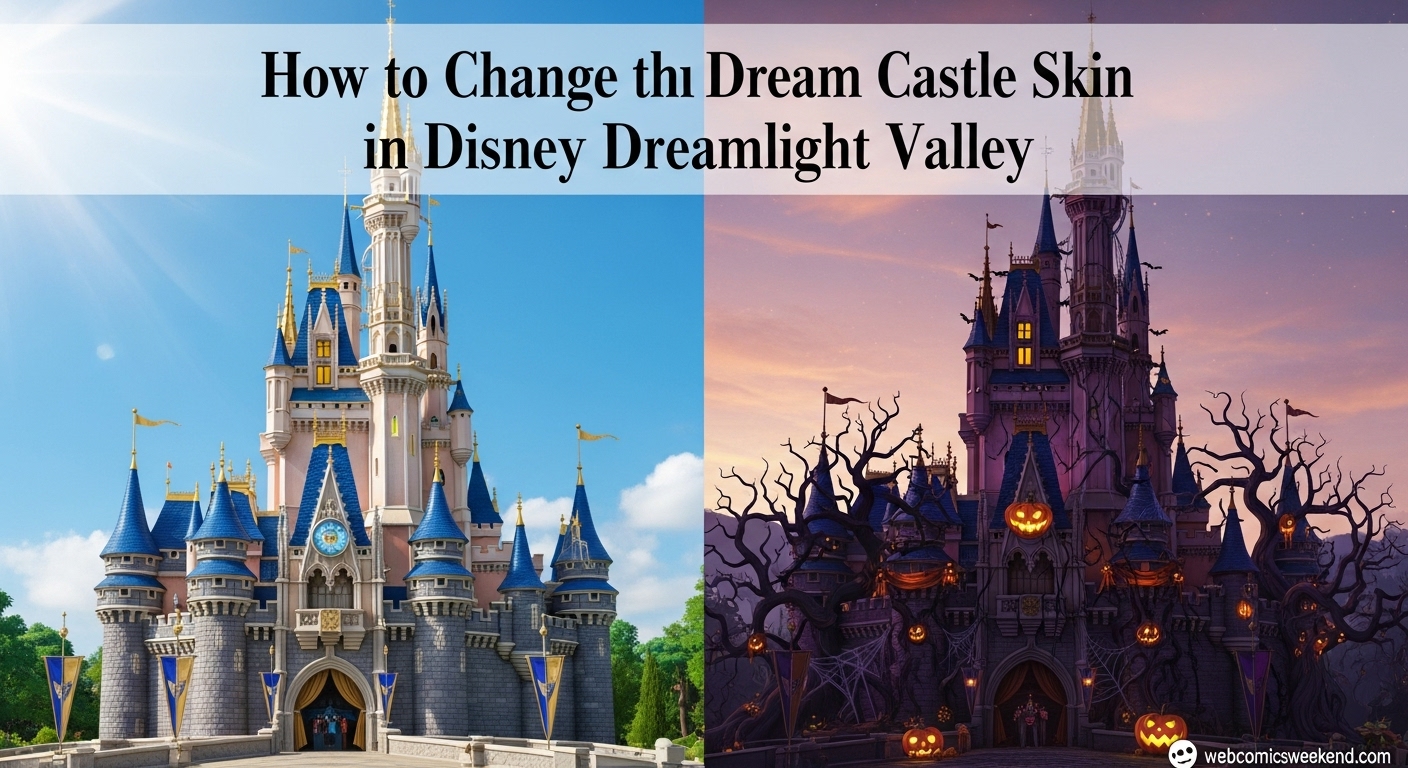
I remember when I first heard about the Return to Beast’s Castle update in Disney Dreamlight Valley. Like many of you, I was super excited about meeting Lumiere and Cogsworth, but what really caught my attention was the ability to finally change the look of my Dream Castle! After spending countless hours in my valley, I was ready for a fresh new look for the centerpiece of my village.
Let me walk you through everything I’ve learned about getting and changing Dream Castle skins in Disney Dreamlight Valley. I’ve spent hours testing different methods and talking with other players to bring you the most comprehensive guide possible!
What Are Dream Castle Skins?
Dream Castle skins are basically cosmetic overlays that change the appearance of your castle without affecting its functionality. Think of them like outfits for your castle! When I first discovered this feature, I was thrilled because let’s be honest – after looking at the same castle design for months, a change is definitely welcome.
The cool thing about these skins is that they only change the exterior appearance of your Dream Castle when viewed from the front. The interior stays exactly the same, so you don’t have to worry about losing any of your progress or decorations inside.
Available Dream Castle Skins
Currently, there are two Dream Castle skins available in Disney Dreamlight Valley:
| Skin Name | How to Obtain | Cost | Description |
|---|---|---|---|
| Default Village Castle | Automatic | Free | The classic castle design that everyone starts with |
| Halloween Castle | Premium Shop | 3,500 Moonstones | A spooky, festive design with glowing pumpkins, webs, and floating candles |
I’ve personally purchased the Halloween Castle skin, and let me tell you – it’s absolutely stunning! The attention to detail is incredible, with glowing pumpkins, spooky cobwebs, and floating candles that really give your valley that perfect Halloween atmosphere. When I first applied it, I spent like 10 minutes just walking around my castle admiring all the little details.
How to Get Dream Castle Skins?
Right now, the only way to get Dream Castle skins is through the Premium Shop. Here’s exactly how I did it:
- Open the main menu – Just press the menu button on your platform
- Navigate to the Premium Shop – You’ll see it right there in the main menu
- Browse available items – Scroll through until you find the castle skins section
- Select your desired skin – Currently, only the Halloween Castle is available
- Confirm the purchase – It’ll cost you 3,500 Moonstones
Now, I know what you’re thinking – 3,500 Moonstones is quite a lot! And honestly, I agree. But considering this is the first-ever Dream Castle skin and it’s a permanent addition to your game, I think it’s worth it if you’re really into customizing your valley.
Pro tip: The Premium Shop items change every week, so if you’re not sure about the Halloween skin, you might want to wait and see what other designs become available in the future. I’m personally hoping for a Christmas-themed castle skin when the holiday season rolls around!
How to Change Dream Castle Skin? – The Complete Guide
Okay, here’s where things get a bit tricky. When I first bought the Halloween Castle skin, I was super confused about how to actually equip it. The game doesn’t really tell you how to do it, and I spent a good 30 minutes running around my castle trying to figure it out!
But don’t worry – I’ve got you covered. After some trial and error (and a bit of help from fellow players), I’ve mastered the process. Here’s exactly how to change your Dream Castle skin:
Step-by-Step Instructions
- Head to the Plaza – This is the easiest starting point. I usually just fast travel to the Plaza Wishing Well by pressing ‘M’ to open my map and clicking on the well.
- Enter Furniture Mode – Press ‘F’ on your keyboard (or the equivalent button on your console) to enter Furniture Mode. This is the same mode you use to move furniture around your valley.
- Position yourself correctly – This is the part that tripped me up initially. You need to be in the right spot to select the castle. I found that standing in the Plaza area, right in front of the castle, works best.
- Hover over the Dream Castle – Move your cursor until it’s hovering directly over the Dream Castle. Here’s the tricky part – you need to make sure you’re hovering over the castle itself, not the Plaza area with the wishing well. They’re connected, but the game treats them as separate objects.
- Tilt your camera up – This is crucial! The default camera angle makes it really difficult to select the castle. I had to tilt my camera way up to get the right angle. It might feel awkward at first, but trust me, it works.
- Look for the “Replace” option – Once you’re hovering over the castle correctly, you should see a “Replace” button appear in the bottom-right corner of your screen. When I first saw this, I was so relieved!
- Select your skin – Click the “Replace” button, and a menu will pop up showing all the castle skins you have available. Currently, you’ll see the Default Village Castle and the Halloween Castle (if you purchased it).
- Choose and apply – Just click on the skin you want to apply, and voila! Your castle will instantly transform with the new skin.
Pro Tips I’ve Discovered
After changing my castle skin multiple times (yes, I switch back and forth depending on my mood!), I’ve picked up some additional tips that might help you:
- The Forest of Valor trick: Some players have found that standing in the Forest of Valor, close to the castle wall, makes it easier to select the castle in Furniture Mode. I’ve tried this method, and while it works, I personally find the Plaza method more reliable.
- Camera angle is everything: I can’t stress this enough. If you’re not seeing the “Replace” option, it’s almost always because your camera angle isn’t right. Keep tilting it up until you can clearly see the castle structure.
- Be patient: The first time I tried this, I got frustrated because I kept selecting the Plaza area instead of the castle. Take your time and make sure you’re hovering over the right part.
- You can change anytime: One of the best things about this feature is that you can switch between skins whenever you want. I love changing mine to match the seasons or special events happening in the game.
Troubleshooting Common Issues
I’ve seen a lot of players in the Disney Dreamlight Valley community struggling with the same issues I initially faced. Let me address some of the most common problems:
“I can’t see the Replace option!”
This is by far the most common issue I hear about. When this happened to me, it was usually because of one of these reasons:
- Wrong camera angle – Try tilting your camera up more
- Hovering over the wrong area – Make sure you’re over the castle, not the Plaza
- Standing too far away – Get closer to the castle
- Not in Furniture Mode – Double-check that you’ve pressed ‘F’ to enter Furniture Mode
“I bought the skin but it’s not showing up!”
If you’ve purchased the skin from the Premium Shop but don’t see it in your options, try these steps:
- Restart the game – Sometimes a simple restart fixes everything
- Check your purchase history – Make sure the transaction went through
- Wait a few minutes – Sometimes it takes a moment for purchases to register
“The Replace option is grayed out!”
This usually means you don’t have any additional skins unlocked. Remember, you need to purchase at least one skin from the Premium Shop before you can change your castle’s appearance.
Is the Halloween Castle Skin Worth It?
I get asked this question a lot, and honestly, it depends on your playstyle and how much you care about customization. Let me break down my thoughts:
Pros:
- It looks absolutely amazing, especially at night when all the glowing effects really pop
- It’s a permanent addition to your game
- It really changes the atmosphere of your valley
- It’s the first-ever Dream Castle skin, making it a bit of a collector’s item
Cons:
- 3,500 Moonstones is quite expensive
- It only changes the exterior appearance
- More skins will likely be available in the future
Personally, I’m really happy with my purchase. I love how it makes my valley feel unique, and I enjoy switching between the default and Halloween skins depending on my mood. But if you’re saving your Moonstones for other items or don’t care much about customization, you might want to skip it.
Future Castle Skins I’m Hoping For
Since the Premium Shop updates weekly, I’m really excited to see what other castle skins become available. Here are some themes I’d love to see:
- Christmas Castle – Imagine a castle covered in snow with twinkling lights!
- Spring Garden Castle – Covered in flowers and vines
- Beach Resort Castle – Perfect for the Dazzle Beach area
- Frozen Ice Castle – Inspired by Elsa’s ice palace
- Pirate Castle – Because who doesn’t love a good pirate theme?
I’m also hoping that future updates might allow us to customize different parts of the castle separately, like the towers, walls, or even add different flags and banners.
Other Customization Options in Dreamlight Valley
While we’re on the topic of customization, let me share some other ways I’ve found to personalize my valley:
- House skins – Similar to castle skins, you can change the appearance of your house
- Furniture customization – Use Touch of Magic to recolor furniture items
- Clothing design – Create and share your own clothing designs
- Valley layout – Rearrange your entire valley to create the perfect layout
I’ve spent countless hours tweaking and customizing every aspect of my valley, and it’s amazing how much difference these small changes can make to your overall gaming experience.
Final Thoughts
Changing your Dream Castle skin in Disney Dreamlight Valley might seem complicated at first, but once you get the hang of it, it’s actually quite simple. I remember how frustrated I was when I first tried to figure it out, but now I can change my castle skin in under a minute!
The key things to remember are:
- Buy skins from the Premium Shop
- Use Furniture Mode (‘F’)
- Position your camera correctly
- Hover over the castle, not the Plaza
- Look for the “Replace” option
I hope this guide helps you avoid the frustration I went through and lets you enjoy customizing your Dream Castle to your heart’s content. There’s something really satisfying about putting your personal touch on every aspect of your valley, and the castle is definitely the centerpiece that ties everything together.
What kind of castle skins are you hoping to see in future updates? I’d love to hear your ideas and see screenshots of your customized castles in the comments below!
FAQ
How much do Dream Castle skins cost?
Currently, the Halloween Castle skin costs 3,500 Moonstones in the Premium Shop. This is quite expensive, but it’s a permanent addition to your game.
Can I change my castle skin back to the default?
Absolutely! You can switch between any skins you’ve unlocked at any time. I often switch back to the default skin when I want a more classic look for my valley.
Do castle skins affect gameplay?
No, castle skins are purely cosmetic. They only change the exterior appearance of your Dream Castle and don’t affect any gameplay mechanics or interior layouts.
Will there be more castle skins in the future?
While nothing has been officially confirmed, it’s very likely that more castle skins will be added to the Premium Shop in future updates, especially since the shop refreshes weekly.
Can I preview castle skins before buying?
Yes! When browsing the Premium Shop, you can toggle between day and night views to see how the skin looks at different times. I highly recommend doing this before making your purchase.
Why can’t I see the Replace option?
This is usually due to camera angle or positioning. Make sure you’re in Furniture Mode, hovering directly over the castle (not the Plaza), and have your camera tilted up to get a good view of the castle structure.
Do I need to complete certain quests to unlock castle skins?
No, castle skins are available to all players through the Premium Shop, regardless of your progress in the game. However, you do need to have unlocked the Dream Castle itself, which happens early in the main story.
Can I use castle skins on other buildings?
Currently, castle skins only work on the Dream Castle. However, you can customize other buildings using different methods, like house skins for your player home.
Are castle skins platform-specific?
No, castle skins work the same way across all platforms – PC, PlayStation, Xbox, and Nintendo Switch.
What happens to my castle skin during events?
Your castle skin remains active during all events and seasons. I’ve kept my Halloween skin active during other events, and it works perfectly fine!
Want more Disney Dreamlight Valley tips and tricks? Check out our other guides on webcomicsweekend.com for everything you need to know about customizing your valley, completing quests, and unlocking all your favorite characters!